Best GPU for Home Assistant AI in 2026: VRAM, Power and Real Costs
Choose a practical GPU for Home Assistant, local LLMs, Whisper and camera AI without wasting money or power.
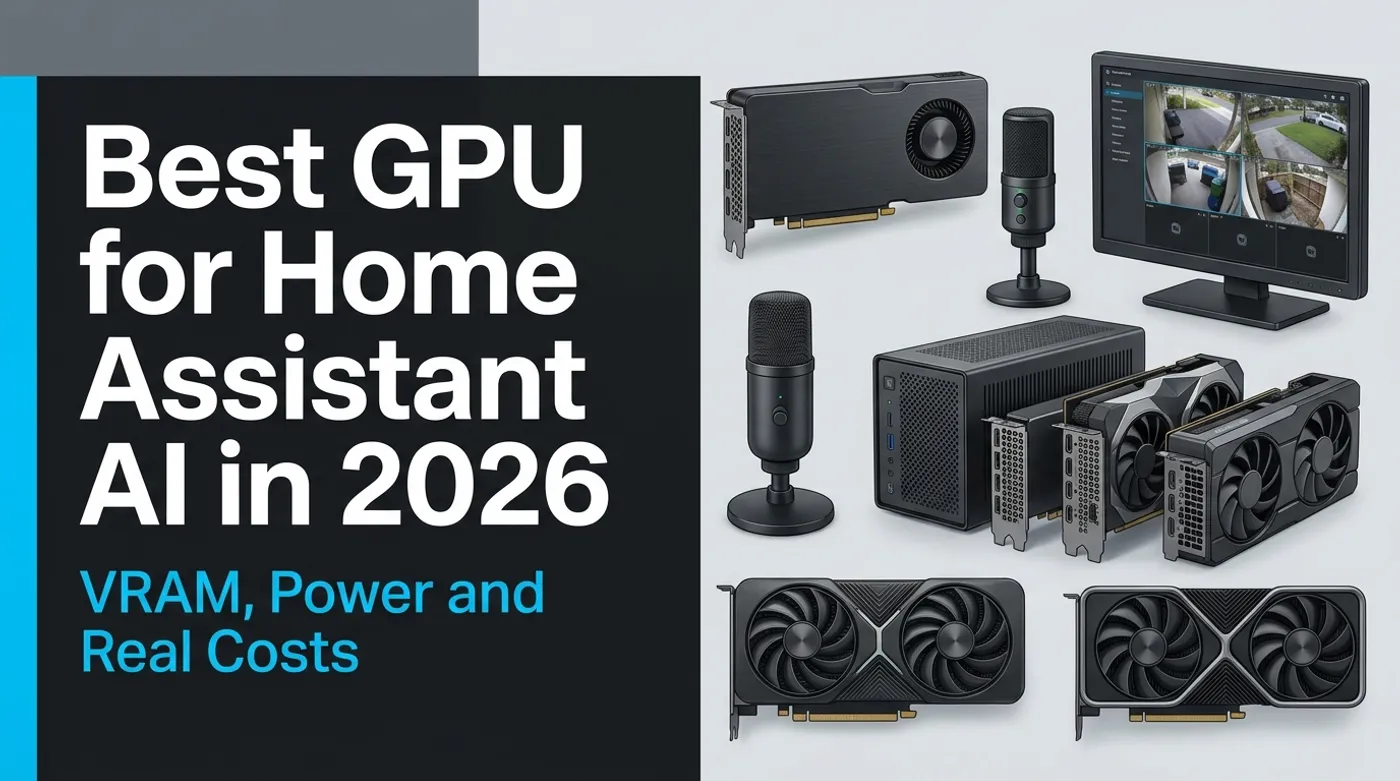
Choose a practical GPU for Home Assistant, local LLMs, Whisper and camera AI without wasting money or power.
Buying a GPU for Home Assistant sounds slightly ridiculous until one box is doing four jobs: speech recognition, a local language model, camera object detection, and the occasional image or embedding task. Then the shopping advice gets ridiculous instead. People compare gaming frame rates, quote a model’s parameter count, and somehow conclude that the most expensive card is “future-proof.”
That is the wrong filter. For a home AI server, usable VRAM, software support, idle behavior, case fit, and the workload you actually run matter more than gaming rank. Home Assistant itself barely cares about a GPU. The services around it do.
Match the GPU to the Workload
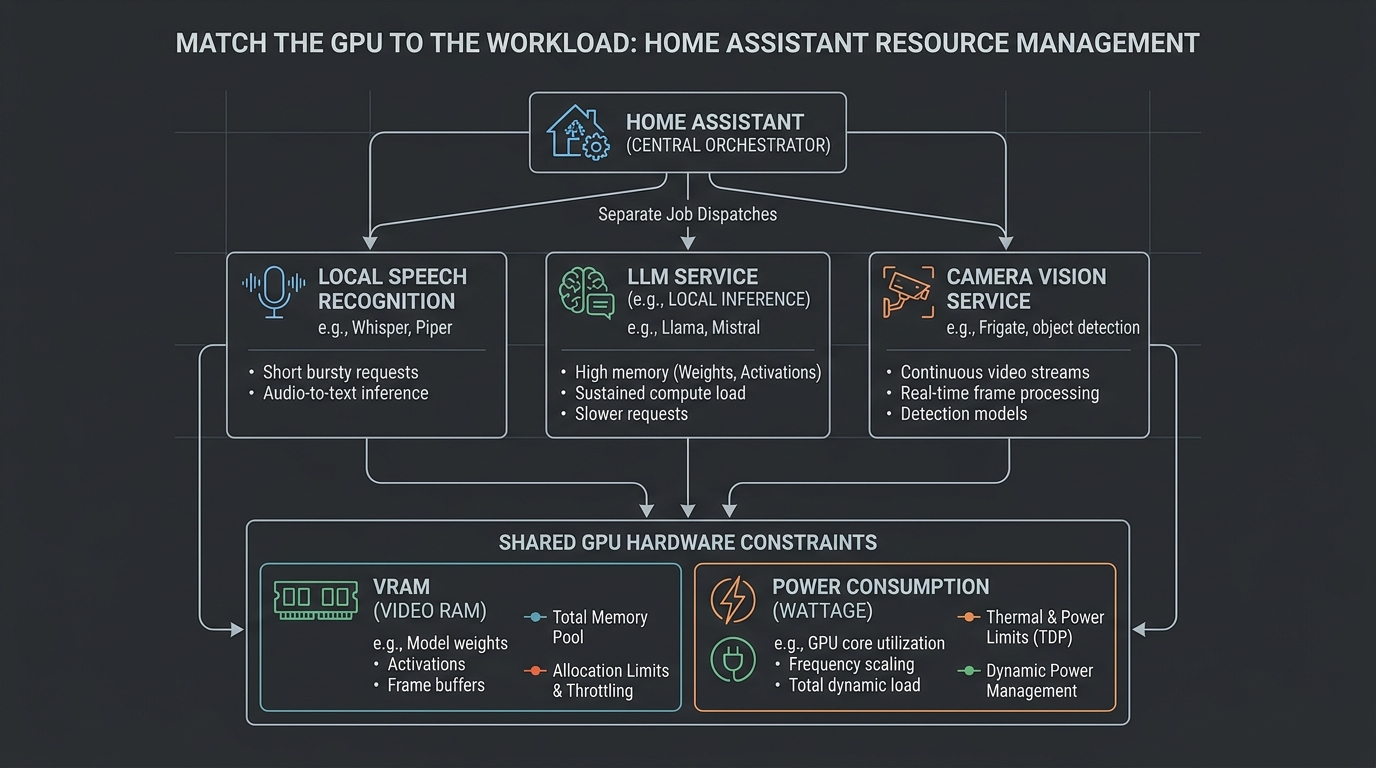
Start by separating the jobs instead of treating “AI” as one large process.
| Workload | Does it need a discrete GPU? | What usually matters |
|---|---|---|
| Home Assistant automations | No | Reliable CPU, storage and backups |
| Whisper speech-to-text | Optional | GPU improves latency and concurrency; CPU can be enough for one voice pipeline |
| Piper text-to-speech | Usually no | CPU performance and model choice |
| Small local LLM | Optional but useful | VRAM, quantization, context length and memory bandwidth |
| Frigate object detection | Not necessarily | Supported detector path; a Coral, iGPU or dedicated accelerator may be a better fit |
| Multimodal camera analysis | Often useful | Model memory plus room for image inputs and context |
That distinction saves money. A household running one voice satellite and deterministic automations does not need a 250-watt GPU idling all day. A server running an LLM, Whisper and multiple camera-analysis jobs at once is a different machine.
If camera recording is the primary goal, design the NVR first. The GPU should accelerate analysis without becoming a single point of failure for recording. The architecture in Build a Local NVR With Frigate and No Cloud Subscription keeps those responsibilities separate.
VRAM Is the First Filter
CUDA cores are easy to advertise. VRAM is what decides whether the model fits.
A quantized model needs memory for its weights, runtime overhead, context, KV cache, and sometimes multimodal components. Loading a file that is 5.5 GB onto an 8 GB card does not leave 2.5 GB of carefree space. The context window grows, another service starts, the display consumes memory, and suddenly the model is spilling into system RAM or failing to load.
Use these tiers as practical planning ranges, not guarantees:
- 6 GB: speech workloads, embeddings, small language models, and modest camera inference. This is a constraint, not a tragedy.
- 8 GB: small coding or assistant models at sensible context sizes, plus good speech acceleration. Multimodal use needs discipline.
- 12 GB: the comfortable value tier for larger quantized models, longer context, or multiple local services.
- 16 GB and above: useful when larger models or concurrent workloads are a measured requirement, not because a benchmark chart looked exciting.
Google’s published Gemma 4 inference memory estimates illustrate why the model name alone is not enough. Its Q4_0 estimates range from roughly 2.9 GB for E2B to 6.7 GB for 12B, before your specific runtime, context and other services complicate the picture.
If the card is already limited to 4 GB or 8 GB, use the tuning path in How to Run a Local Coding LLM With Only 4GB or 8GB of VRAM before buying an upgrade. Model choice can change the result more than a small step between GPUs.
The Shortlist That Makes Sense
RTX 3050 6 GB: the low-power retrofit
The 6 GB RTX 3050 is interesting for old office desktops because NVIDIA rates the reference design at 70 watts and no supplementary power connector. That can turn a machine with a modest power supply into a useful Whisper, embedding, or small-model host.
The compromise is obvious: 6 GB closes the door on many comfortable LLM configurations. Buy it for a known light workload, not as a vague local AI investment.
RTX 3050 8 GB: workable when you already own it
The 8 GB version has more memory, but NVIDIA lists a 130-watt card power figure for the reference specification. It is a better small-model card than the 6 GB variant, yet used pricing can put it uncomfortably close to more useful 12 GB cards.
If it is already in your desktop, use it. If you are shopping specifically for local AI, compare the total cost against an RTX 3060 12 GB before paying.
RTX 3060 12 GB: the used-market capacity pick
The 12 GB RTX 3060 remains attractive because memory capacity ages differently from gaming performance. NVIDIA launched it with 12 GB of GDDR6, and that extra room is useful for quantized LLMs, longer contexts, and mixed workloads.
Its weaknesses are age, efficiency, and the uncertainty of used hardware. Check temperatures, fan noise, physical dimensions, power connectors, and seller return policy. A cheap card with worn fans and no return path is just a delayed repair project.
RTX 4060 8 GB: efficient, but still 8 GB
NVIDIA specifies 8 GB of VRAM and about 110 watts average gaming power for the RTX 4060. The efficient architecture is appealing for an always-on server, and current CUDA support is straightforward.
But efficiency does not manufacture memory. For Whisper, smaller LLMs, and a compact machine, the 4060 is sensible. For models that already press against 8 GB, it is an expensive way to remain pressed against 8 GB.
RTX 5070 12 GB: speed before value
The RTX 5070 brings 12 GB of GDDR7, newer Tensor cores, and substantially more compute. NVIDIA lists 250 watts total graphics power for the reference card. It can be a strong mixed-use choice when the same workstation handles gaming, development, and local inference.
As a dedicated Home Assistant companion, it is harder to justify. Many home workloads are idle most of the day, and a faster GPU does not help a model that is already responding within an acceptable latency target.
What About AMD and Intel GPUs?
They can work, especially through ROCm, Vulkan, OpenVINO, or runtime-specific backends. The problem is not that non-NVIDIA hardware is incapable. The problem is that the path from “supported in principle” to “this exact model and container works after an update” can require more attention.
For a general-purpose home server, NVIDIA remains the conservative recommendation because CUDA support appears across more local inference projects. If you already own an AMD or Intel card, test it before replacing it. llama.cpp supports several backends, including CUDA, HIP, Vulkan, SYCL and OpenVINO paths, and its official repository is the right place to confirm current support.
A six-month-old compatibility table is not purchasing advice. Inference backends move quickly, so verify the exact card and runtime before spending money.
Power Cost: Measure the Wall, Not the Spec Sheet
TGP is not your electricity bill. The server rarely runs at maximum GPU power continuously, and idle consumption varies by card, driver, display state, motherboard, power supply, and operating system.
Use a wall meter and calculate:
annual_cost =
  average_extra_watts / 1000
  x hours_per_day
  x 365
  x electricity_rate_per_kWh
For example, an extra measured 35 watts running all day uses:
0.035 kW x 24 x 365 = 306.6 kWh per yearMultiply that by your actual electricity rate. Then compare it with the price difference between the GPUs. This is less glamorous than quoting TOPS, which is probably why it is more useful.
Also measure the whole server in three states:
- Home Assistant and containers idle.
- Whisper or the LLM handling a normal request.
- LLM, speech and camera analysis running together.
The third state exposes power-supply and cooling problems. The first state determines most of the annual bill.
The Hidden Costs
The card price is only the first line.
- Power supply: old business desktops may lack both wattage and the correct PCIe connector.
- Case clearance: low-profile systems need a genuinely low-profile card and bracket.
- Cooling: a GPU recirculating hot air beside storage drives is a bad home server layout.
- RAM: CPU offload and larger contexts can make 32 GB of system RAM more useful than a faster GPU.
- Storage: model files multiply quickly; use an SSD rather than making every model load a hard-drive benchmark.
- Downtime: if the AI service shares the Home Assistant host, driver experiments can interrupt the house.
I prefer a separate inference service on the LAN. Home Assistant calls it through a narrow API, while lights, locks, schedules, and safety automations keep working if the GPU server is rebooting.
What I Would Buy
For a low-power retrofit where speech and small models are the target, I would consider the RTX 3050 6 GB only if the no-connector 70-watt design solves a real chassis or PSU problem.
For the best practical used capacity, I would look first at a healthy RTX 3060 12 GB. Twelve gigabytes gives a home lab room to experiment without immediately turning context length into a negotiation.
For a compact new build where power and current-generation support matter more than model size, the RTX 4060 8 GB is reasonable. Just do not call it future-proof.
The RTX 5070 12 GB belongs in a workstation that will use its speed. It is overkill for a Home Assistant box that asks a small model to classify a few commands per hour.
For C# and .NET specifically, the companion Qwen3 vs Gemma 4 local coding comparison explains how to test the models on the hardware instead of choosing from family-level benchmark claims.
Verify Before the Return Window Closes
Install the card and test the workload you intend to keep:
- confirm the runtime detects the GPU;
- load the exact quantized model you plan to use;
- set the intended context size;
- run Whisper while the LLM is loaded;
- start the camera-analysis service;
- watch VRAM, system RAM, temperature and wall power;
- reboot and confirm every service returns without manual intervention.
If the system only works when every context, batch and camera setting is at its minimum, the card does not fit the workload. Return it while that is still an option.
Keep reading
Related guides
Build an Offline Multimodal Voice Assistant for Home Assistant
Build a local Home Assistant voice pipeline with wake word, speech, Gemma 4 context, allowlisted actions and spoken responses.
Gemma 4 Audio Local Inference: What Works Offline and What Does Not
Test Gemma 4 audio locally for transcription and translation, with realistic runtime, format, memory and latency limits.
Build an Offline Care Assistant for Older Adults or Pets
Combine local voice, fall signals, medication reminders and family alerts without turning a home lab into a medical device.