Syncthing is not a backup: build a recovery path that survives mistakes
Use Syncthing for daily file access, then add independent recovery. Learn what versioning protects and test a restore without risking your files.
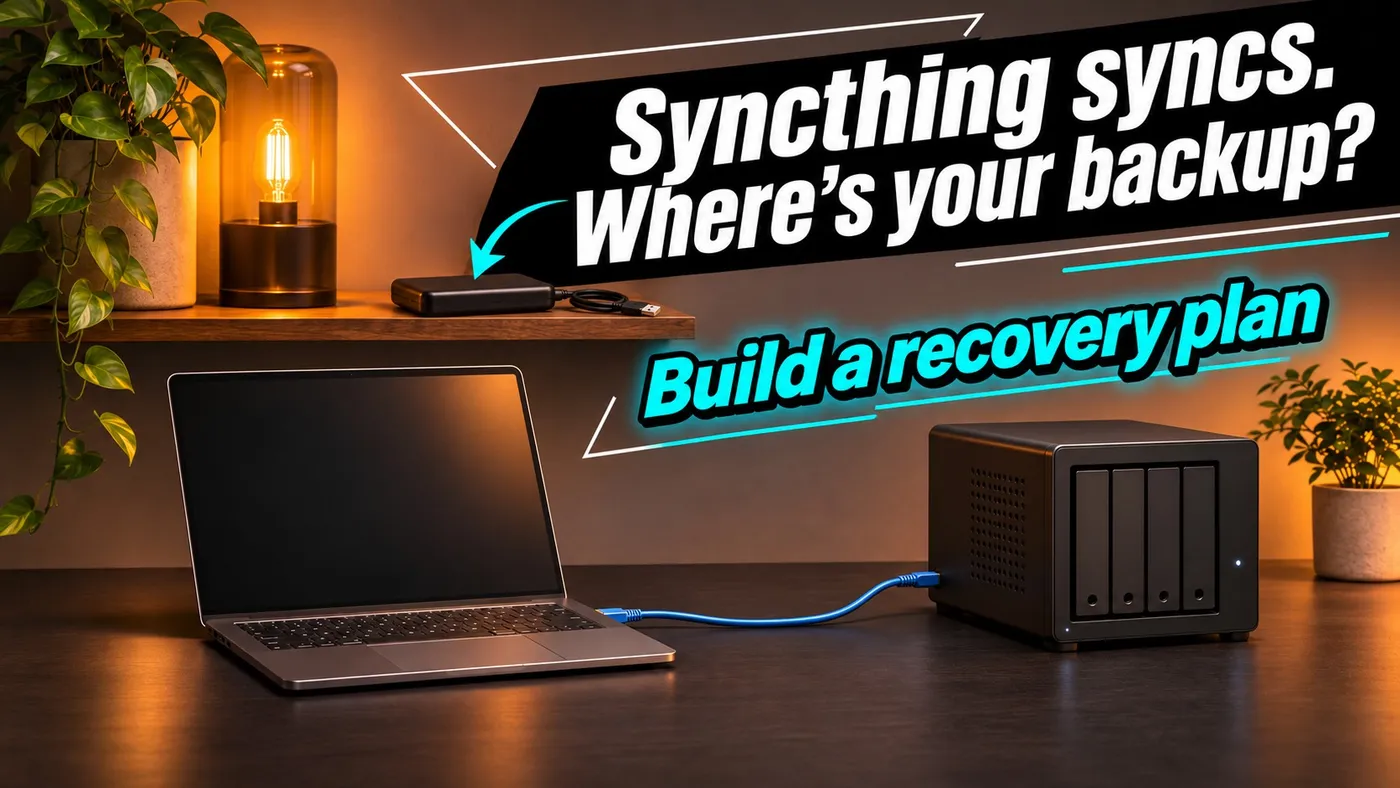
Use Syncthing for daily file access, then add independent recovery. Learn what versioning protects and test a restore without risking your files.
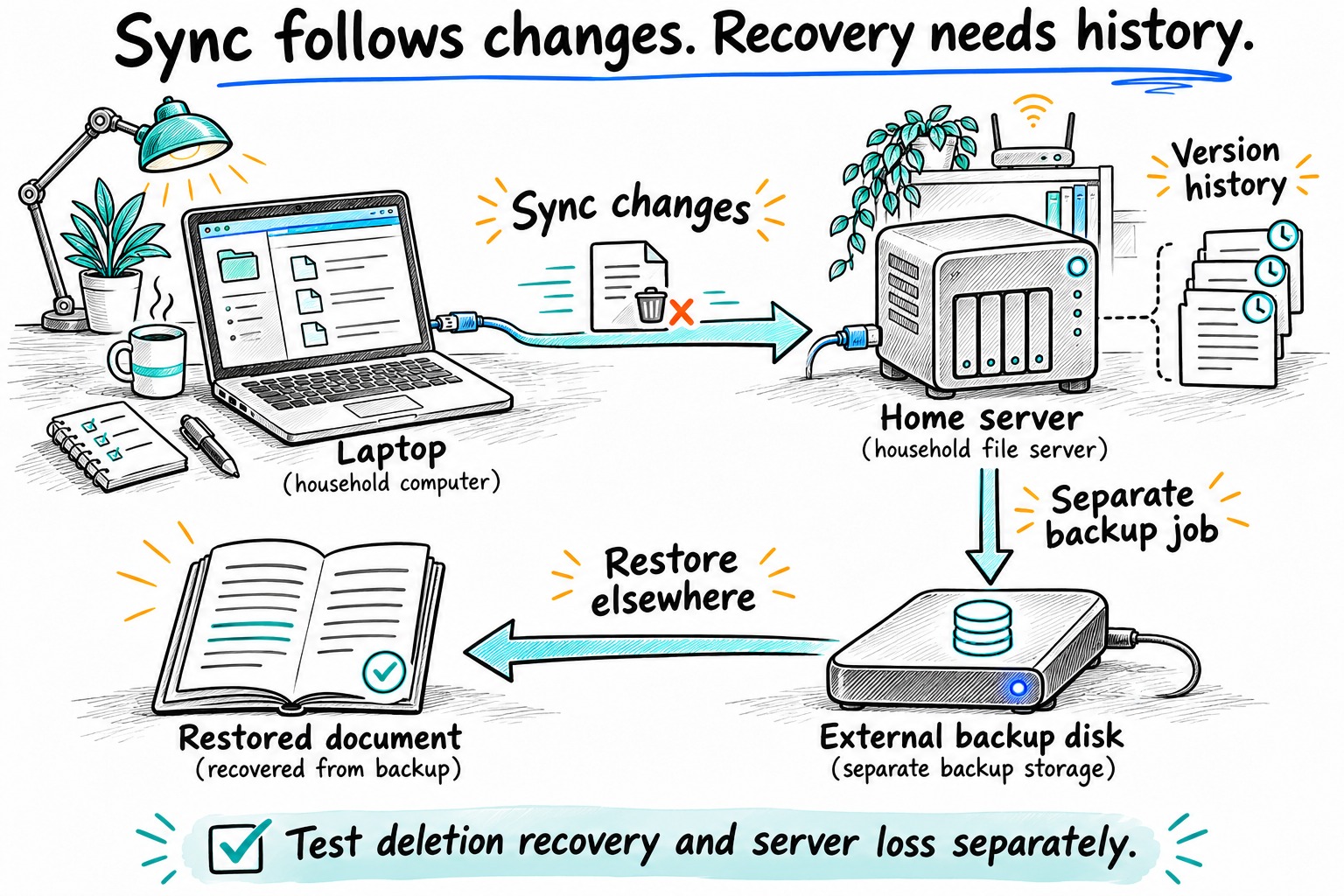
Delete a folder on your laptop and watch it disappear from your home server. That can be Syncthing doing exactly what you configured it to do. The second machine holds another copy, but both copies follow the same changes.
Use synchronization to make files available where you work. Build recovery separately, so a mistaken edit does not become the only surviving version of your work. A small home setup can do both without turning into a storage administration hobby.
By the end of this guide, you should have a recovery destination outside your synchronized folders and a restored test file you can actually open. That is a more useful deliverable than another green status icon. Green is a color, not a recovery strategy.
Start with two different jobs
Suppose you keep household documents on a laptop and synchronize them to an always-on server. The laptop is convenient for editing. The server stays available when the laptop sleeps. Neither role establishes how you will recover last Tuesday’s document after discovering a mistake on Friday.
An independent backup needs a recovery history, a retention policy and a destination that survives the failures you care about. A drive beside the server may help with a failed system disk; it does not solve a fire in the same room. A permanently writable destination can also be damaged by the account that writes to it.
For this example, use three locations:
| Location | Purpose | Expected changes |
|---|---|---|
| Laptop working folder | Everyday editing | Frequent |
| Server synchronized folder | Another accessible working copy | Follows synchronization |
| Separate backup destination | Recover earlier states | Controlled by backup retention |
The backup destination must not be another ordinary folder in the same synchronization relationship. Keep its recovery history outside the path that normal edits and deletions propagate through. Your choice of backup software can change later; that separation is the architectural decision.
What Syncthing versioning actually protects
Syncthing’s versioning is configured separately for each folder on each device. It is disabled by default. When enabled, it can preserve a previous file as a change arrives from another device. A local edit on that same machine does not receive that protection from Syncthing versioning.
That distinction determines where to enable it. If the laptop is where you edit and the server receives those edits, configure versioning on the server’s receiving folder. Enabling it only on the laptop does not give the server a recovery history.
For an initial setup, Simple versioning is easier to reason about than an elaborate retention policy: decide how many earlier versions you need and measure the storage it consumes. Staggered versioning spreads retained versions across time. Neither choice makes the server disk independent of its own failure. See the official versioning documentation for the available retention settings.
Version history also cannot recover something that never reached that device. If you create and destroy a document while the laptop is offline, the server may never have held the original. A local backup or application recovery history addresses a different gap.
Receive-only does not mean undeletable
A receive-only folder prevents local changes from being distributed as ordinary updates to peers. It still accepts changes from the cluster, including deletions. It is useful for a replica that should not become an editing workstation; it is not a retention policy.
Send-only mode has a different purpose: treat one device as the reference copy. Its override action can enforce that device’s state elsewhere, including removing files absent from the reference. Do not press override to make a warning disappear until you understand which copy you are choosing.
The folder type reference explains these controls. For a family document folder, choose the mode according to where people should edit, then design backup independently of that decision.
Prove recovery with disposable files
Run this exercise in a new test folder shared between two devices. Do not begin with your photo library. These are suggested verification steps, not a claim that your installation has already passed them.
- Create
recovery-test.txton the laptop with a recognizable first sentence. Wait until both devices report that the test folder is synchronized, then open the server copy. - Enable the chosen versioning strategy on the server for this test folder. Change the laptop file, synchronize again, and inspect the server’s available historical version.
- Delete the laptop file and allow that deletion to propagate. Confirm whether you can recover the expected earlier contents on the receiving device.
- Export a recovered copy to a directory outside the synchronized folder. Open it before deciding where to put it back. This avoids treating a restored file as just another live update before you have checked it.
- Run your separate backup job. Restore the test folder into a new destination without overwriting either working copy. Compare the restored contents with the version you intended to retain.
Write down where the restore came from, which credentials it required and how long it took. If recovery depends on a password stored only on the failed server, the exercise has found a real design problem.
After the drill, choose an acceptable loss window. For example, a nightly backup can miss changes made after its last successful run. That may be tolerable for household reference documents and unacceptable for a day’s paid work. Set the interval around the data, not around an arbitrary schedule.
Keep a restore receipt someone else can use
Save the following note outside the synchronized working folder, alongside instructions for accessing the backup. Fill it from the drill rather than from memory:
Working folder:
Backup destination and last successful job:
Version/date selected for recovery:
Restored to a separate directory:
File opened and contents checked:
Credentials accessible without the original machine: yes / no
Elapsed recovery time:
Missing files or follow-up:
Keep passwords out of this note; record how an authorized person obtains them. If the independent backup is unavailable, label the drill as a version-history recovery only. Finding a file in Syncthing history is useful, but it does not prove that you can recover after losing that server.
Conflicts need a decision about the contents
Two people can edit their local copies before either receives the other’s update. Syncthing can preserve a conflicting copy, but it cannot decide which paragraph or spreadsheet value the household intended to keep.
When a conflict appears, keep both files until you compare them. Do not automate deletion of every filename containing sync-conflict. The synchronization documentation describes conflict handling; it is not an application-aware merge system.
For files that regularly need simultaneous editing, change the workflow or choose software designed for collaboration. Repeatedly restoring files is a poor substitute for agreeing on how they should be edited.
Separate document sync from application recovery
A folder of exported documents is easier to reason about than the live state of a database-backed application. For services such as Immich, follow the application’s backup requirements instead of assuming a synchronized directory contains everything needed to rebuild it.
Our Immich backup guide covers the separate roles of media and application data. If you are still choosing where these services should run, start with home server versus NAS.
A useful household routine is modest: notice failed backup jobs, keep enough free space for history, and repeat a small restore after changing the storage layout or credentials. The important result is a file you can open from a recovery destination, even when the working copy is gone.
Keep reading
Related guides

Proxmox VM backups: test a restore before trusting the schedule
Restore a Proxmox VM into an isolated test environment, check application data and dependencies, and record a recovery time you can use.
Local ChatGPT: model size in GB and 16–32 GB RAM builds
How many GB does local AI need? Compare 2.0 GB and 4.9 GB model downloads, RAM and VRAM needs, and what differs from using ChatGPT online.
Local RAG With Open WebUI: Chat With Documents Without the Cloud
Build an offline Open WebUI RAG workflow for PDFs with local embeddings, practical chunking, evidence checks and private storage.