How to Choose a Local-First Smart Lock Without Buying App Dependency
Choose a smart lock by protocol, fallback access, battery behavior, and local control instead of app polish or cloud features.
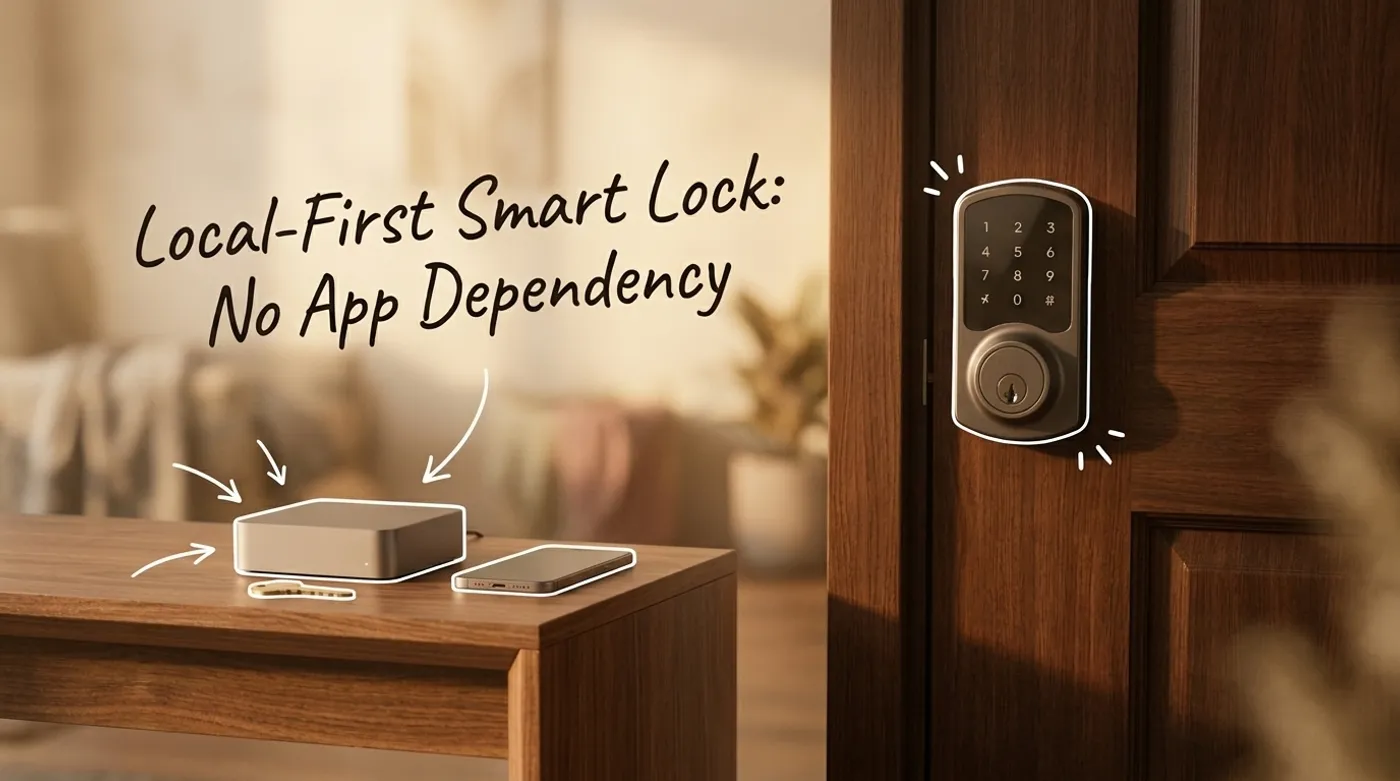
Choose a smart lock by protocol, fallback access, battery behavior, and local control instead of app polish or cloud features.
Most smart lock reviews start in the wrong place. They compare app screens, finishes, and whether a lock can shout at Alexa. That is fine if the lock is a gadget. It is not fine when the thing controls the front door.
A local-first smart lock should be judged like access infrastructure: can people still enter, can you revoke access, can Home Assistant see the state locally, and what happens when the vendor cloud, phone app, Wi-Fi, bridge, or battery has a bad day? The shiny app is allowed to be nice. It just should not be the root of trust.
This guide turns that local-first argument into an actual buying process. The goal is not to name one universal best lock. The goal is to avoid buying a device that works beautifully until the exact moment you need it to be boring.
The Local-First Buying Matrix
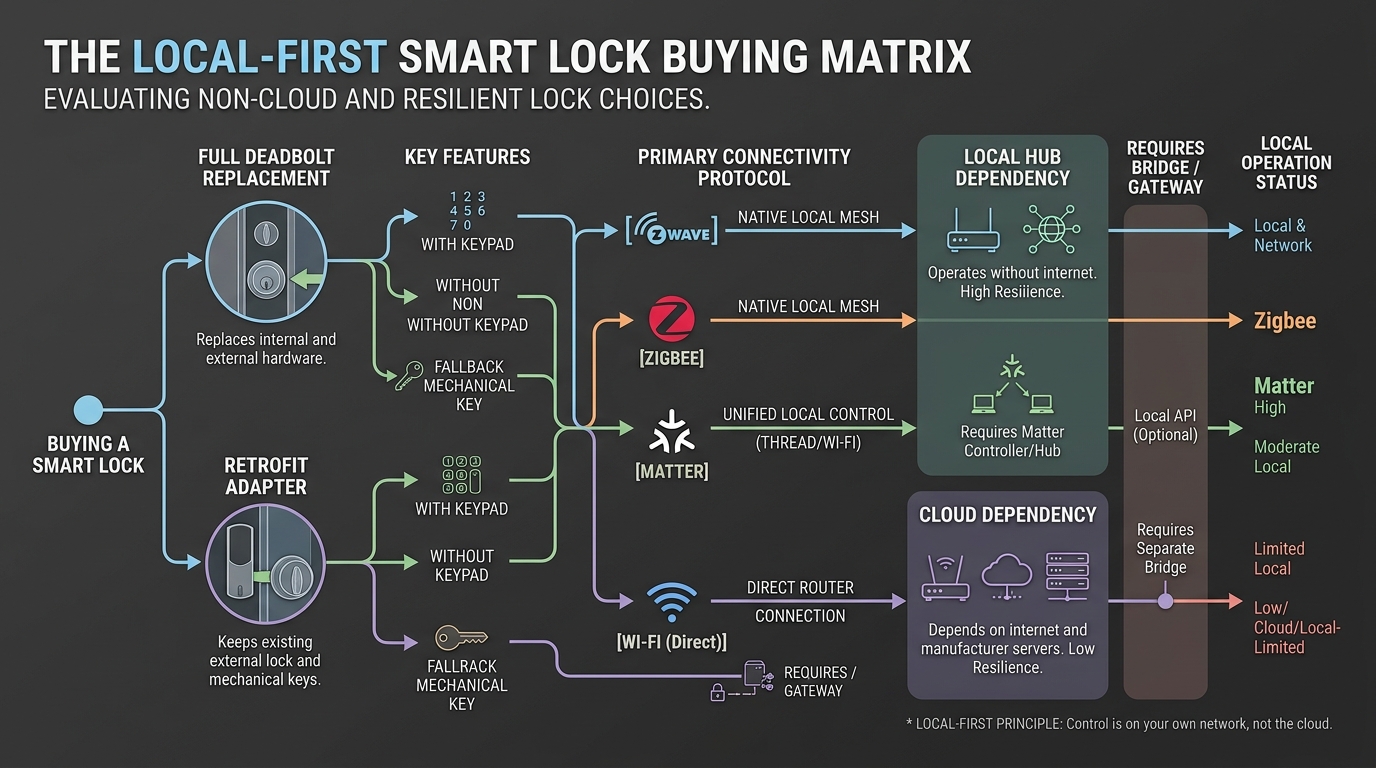
Use this matrix before looking at brands:
| Decision | Better local-first answer | Risky answer |
|---|---|---|
| Lock format | Retrofit adapter or full deadbolt that preserves manual operation | Motorized latch with no practical fallback |
| Access fallback | Physical key, local keypad, or both | Phone app as the only convenient entry method |
| Radio | Z-Wave, Zigbee, or Matter through a local controller | Wi-Fi-only lock that leans on vendor cloud |
| Hub | Home Assistant compatible local hub or coordinator | Vendor bridge that hides most state in the app |
| Guest access | Local keypad codes with clear revocation | Cloud-only invites that require accounts |
| Battery behavior | Clear low-battery reporting and external jump-start or key fallback | Vague battery alerts and no tested recovery path |
| Automations | Lock-only or conservative lock actions | Presence sensor unlocks door because optimism is apparently a security model |
This is why “best smart lock” lists are only mildly useful. They can tell you which locks feel good and which apps are polished. They usually do not tell you what breaks when the internet is down, the bridge is offline, or the deadbolt is slightly misaligned after the house shifts in winter.
Full Deadbolt Replacement or Retrofit Adapter?
A full deadbolt replacement gives you a clean installation, integrated keypad options, and usually a stronger app experience. It also means the smart lock is now the lock body. If the motor, firmware, or mechanical design is poor, the entire entry point is affected.
A retrofit adapter keeps the existing exterior key cylinder and replaces only the inside thumb turn. This is often the safer first local-first choice for renters, cautious homeowners, and anyone with a deadbolt they already trust. The downside is that guests may still need a separate keypad, and the inside hardware can look bulkier.
I would choose retrofit when:
- the existing deadbolt is high quality and aligned well
- you want to preserve the outside keyway
- you are not ready to replace exterior hardware
- you care more about local control than a perfect product-photo door
I would choose full replacement when:
- the old lock is already poor
- you need an integrated keypad
- the door hardware is standard and easy to replace
- you have tested that the deadbolt moves freely without forcing the motor
That last point matters. A smart lock motor should not be used to overcome a sticky door. Fix the strike plate and deadbolt alignment first. Otherwise you are not installing access control. You are installing a tiny battery-powered winch and asking it to solve carpentry.
Which Protocol Is Best for Smart Locks?
There is no perfect protocol, but there are patterns that make sense.
Z-Wave is still one of the stronger choices for local-first locks. It is common in North American access-control hardware, works through a local controller, and fits Home Assistant setups through Z-Wave JS. Home Assistant’s official Z-Wave guide covers S2 inclusion, network-key backup, and the current advice not to move the adapter during inclusion. The network is separate from Wi-Fi, which keeps your lock from becoming one more device fighting for airtime on the same access point as phones, cameras, TVs, and whatever else is chirping on 2.4 GHz.
Zigbee can work well too, especially if you already run a solid Zigbee mesh. The caution is lock compatibility. Some Zigbee locks pair nicely. Others expose less state than you expect, or behave differently depending on coordinator, firmware, and integration path. Test before you promise the household that the phone dashboard is now official truth.
Matter is promising for interoperability, but you still need to verify the actual lock behavior. Matter support does not automatically mean every feature is mature or exposed exactly how you want it in Home Assistant. The Home Assistant Matter integration can expose lock credential-slot status, but support still depends on the lock and controller. Treat Matter as a compatibility layer, not magic dust.
Wi-Fi is convenient and easy to sell. It is also the protocol I would be most suspicious of for a local-first build. Many Wi-Fi locks are designed around vendor apps, cloud push, remote unlock, and account-based guest access. Some are fine. Many are app-first products wearing a security costume.
If you are building around Home Assistant, a practical baseline looks like this:
Home Assistant host: 10.20.0.20
Main LAN:            10.10.0.0/24
IoT VLAN:            10.40.0.0/24
Z-Wave/Zigbee:       local coordinator, no IP per lock
Vendor bridge:       optional, isolated if required
The lock itself does not need to be on Wi-Fi if the local radio network handles state and commands.
What Should Work When the Internet Is Down?
At minimum:
- keypad unlock
- physical key unlock, if the lock has a keyway
- manual inside thumb turn
- local Home Assistant state updates, if the hub and coordinator are powered
- local automations that do not require vendor push
- code removal or disablement through the local system, when supported
Remote unlock from another city may fail during an internet outage. Fine. That is a convenience feature. Entry by a resident standing at the door should not fail because a cloud endpoint is having a dramatic afternoon.
Test this before relying on the lock:
- Connect the lock normally.
- Confirm Home Assistant sees lock/unlock state.
- Disconnect WAN at the router.
- Lock and unlock from keypad, key, and local Home Assistant.
- Reboot the Home Assistant host and confirm manual access still works.
- Reconnect WAN and confirm state recovers cleanly.
If the lock becomes confusing during this test, do not hand it to guests yet.
Keypad Codes Are Not All Equal
Customizable user codes are one of the best smart lock features. They are also easy to misuse.
Good code practice:
- one code per person or role
- separate temporary codes for contractors
- expiration dates for short-term access
- no shared “family code” for everyone
- no obvious codes like street number, birthdays, or
123456 - regular review of active codes
For a local-first house, the key question is where codes are stored and managed. If the lock stores codes locally and the hub can add or remove them, great. If every code operation depends on a vendor cloud account, understand that before a plumber needs access while the vendor app is down.
For contractors, I prefer scheduled keypad codes over app invites. A keypad code can expire. An app invite creates account friction, support calls, and one more place where permissions can be misunderstood.
Battery Behavior Is a Security Feature
Battery life is not just convenience. It affects whether the lock behaves predictably.
Before buying, check for:
- battery type: AA, CR123A, rechargeable pack, or proprietary pack
- low-battery reporting in the lock and Home Assistant
- external 9V jump-start contacts or physical key fallback
- behavior when battery is low but not dead
- motor strain warnings or jammed-bolt reporting
AA batteries are boring and widely available. That is a compliment. Proprietary battery packs can be fine, but only if you keep a charged spare and the lock has a fallback entry method.
Do not trust the first low-battery notification you see in the app. Add a Home Assistant alert and test it:
alias: Front door lock battery low
triggers:
  - trigger: numeric_state
    entity_id: sensor.front_door_lock_battery
    below: 25
actions:
  - action: notify.mobile_app_phone
    data:
      title: "Front door lock battery"
      message: "Battery is below 25%. Replace it before the lock becomes annoying."
Replace sensor.front_door_lock_battery with the entity your integration actually exposes. Names vary, because apparently we needed another small tax on everyone doing this carefully.
Security and Privacy Questions to Ask Before Buying
Ask these before you buy:
- Does the lock require a cloud account for daily use?
- Can it pair to Home Assistant locally?
- Does the integration expose lock state, battery, jammed status, and user code events?
- Can guest codes be created and revoked without a subscription?
- Does the lock have a keyway, keypad, external power contact, or some other real fallback?
- Can remote unlock be disabled?
- Does the app support two-factor authentication?
- Does the lock keep working if the vendor discontinues the model?
You will not get perfect answers for every product. The point is to catch deal-breakers before the lock is on the door and everyone in the house has already learned the new routine.
The Shortlist I Would Actually Build Around
For a local-first home, I would start with one of these categories:
Z-Wave deadbolt with keypad: good fit for Home Assistant through Z-Wave JS, local state, keypad codes, and no direct Wi-Fi dependency.
Zigbee lock with proven Home Assistant compatibility: good if your Zigbee network is already stable and the specific lock exposes the features you need.
Matter lock with local behavior verified: promising if you are already building around Matter controllers, but I would still test before trusting it as the main entry path.
Retrofit lock with physical key preserved: useful when the existing deadbolt is good and you want smart control without changing the exterior.
I would be cautious with Wi-Fi-only locks unless the offline behavior is documented and tested. Built-in Wi-Fi is convenient for product marketing. It is not automatically a better access-control design.
Pre-Install Test Before the Lock Goes on the Door
Do not install the lock and immediately hand it authority over the house. Pair it on a desk first.
Run this test:
- pair the lock with the local hub
- confirm lock, unlock, battery, and jammed state entities
- create a test keypad code
- remove the test keypad code
- disconnect internet and repeat local operations
- reboot Home Assistant and confirm manual lock operation still works
- simulate a low-battery alert if the integration supports it
- check logs for missed events or delayed state updates
Only after that should the lock go on the door.
Final Recommendation
Buy the lock that fails cleanly. That sounds less exciting than “best smart lock of 2026”, but it is the thing that matters.
A good smart lock should still open with a key or keypad, still report state locally, still let trusted people enter, and still make sense when the cloud disappears. If the product only looks good when every app, account, bridge, and server behaves perfectly, it belongs in a demo video, not on the door your family uses every day.
Keep reading
Related guides
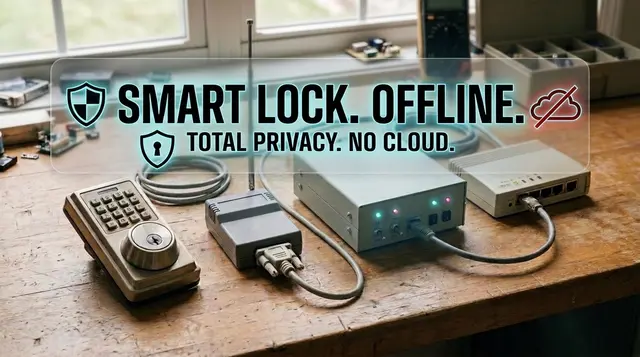
Home Assistant Smart Lock Setup Without Cloud Dependence
Connect smart locks to Home Assistant with local control, safe automations, guest codes, alerts, and conservative unlock rules.
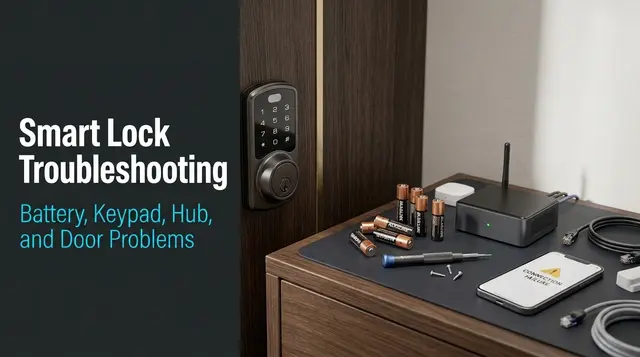
Smart Lock Troubleshooting: Battery, Keypad, Hub, and Door Problems
Diagnose smart lock failures by separating mechanical alignment, battery, keypad codes, local hub state, and cloud dependency.
AI Energy Management With Home Assistant and EMHASS
Use EMHASS with solar forecasts, dynamic tariffs, EV charging constraints and deterministic Home Assistant fallbacks.