USB-C Explained for Everybody: Why the Connector Is Great but the Cable Mess Is Terrible
USB-C is only the connector. Charging speed, video, docks, SSD performance, and laptop power all depend on the cable, charger, port, and protocol.
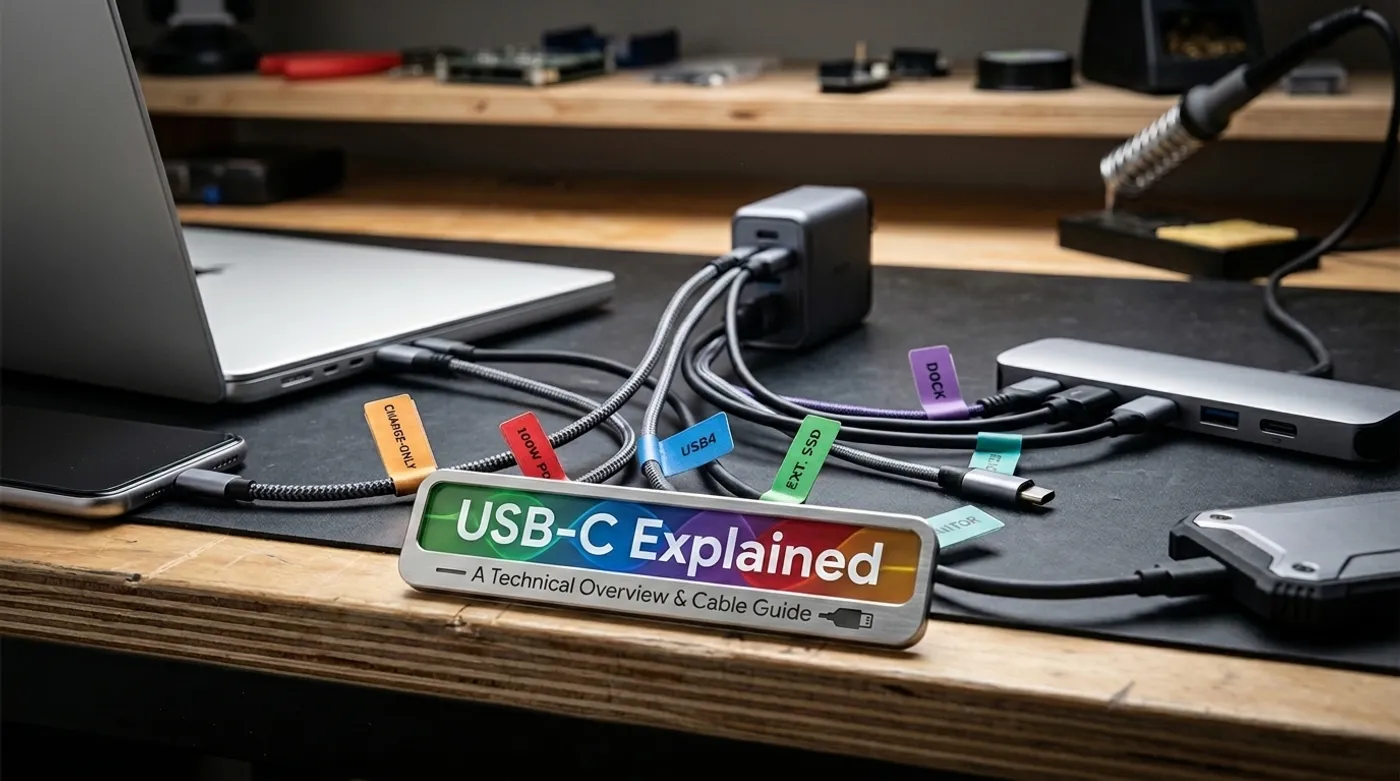
USB-C is only the connector. Charging speed, video, docks, SSD performance, and laptop power all depend on the cable, charger, port, and protocol.
USB-C is one of the best physical connectors ever put on consumer hardware. It is small, reversible, strong enough for laptops, and flexible enough to carry power, data, video, and dock traffic through the same shape of plug.
The problem is that people were sold the shape as if it were the whole technology.
It is not.
A cable can have USB-C on both ends and still be a slow USB 2.0 cable. Another cable can charge a phone quickly but crawl when copying files. Another can power a laptop but refuse to run a monitor. Another can work with a dock until you plug in a high-speed SSD and wonder why everything is unstable.
That is why USB-C feels like a trap. The connector is simple. The ecosystem behind it is not.
USB-C Is Not One Technology
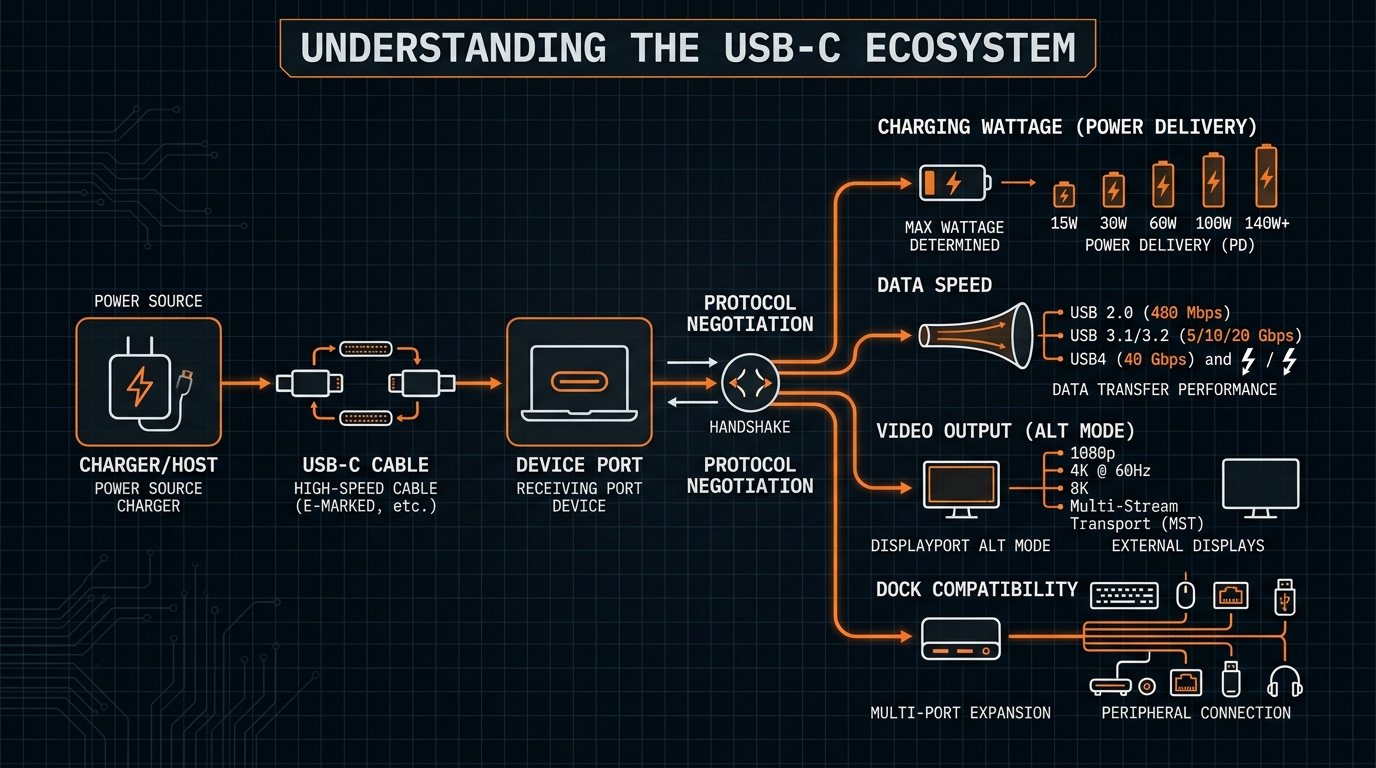
When someone says “USB-C”, they might be talking about five different things:
- The connector: the reversible oval plug.
- The cable: the actual wires, shielding, length, rating, and electronics inside the cable.
- The protocol: USB 2.0, USB 3.x, USB4, Thunderbolt, DisplayPort Alt Mode, or another mode supported by the devices.
- The charger: the power supply and its USB Power Delivery profiles.
- The device port: the laptop, phone, tablet, monitor, SSD, dock, or charger port that decides what is actually supported.
The connector only tells you what shape fits. It does not tell you the charging wattage, data speed, display support, dock behavior, or whether the cable has the identification chip needed for higher power.
That is the whole mess in one sentence: USB-C tells you the plug shape, not the capability.
Why Some USB-C Cables Only Charge
Many cheap USB-C cables are built for basic charging and basic data. They may include only the wiring needed for USB 2.0 data and normal power delivery. That is enough for charging a phone, connecting a keyboard, or moving small files.
It is not enough for a monitor, a serious dock, a fast external SSD, or a laptop that expects high-wattage USB Power Delivery.
The cable can still look modern. It can still be braided. It can still have two USB-C ends. None of that proves it is a high-speed or high-power cable.
If a listing only says “USB-C cable” and says nothing about data speed, wattage, video support, USB4, Thunderbolt, or certification, assume it is a basic cable until proven otherwise.
Fast Charging Does Not Mean Fast Data
Charging and data are separate capabilities.
A cable can support 60W charging and still be limited to USB 2.0 data speeds. That means it may charge a laptop slowly or charge a phone fine, but file transfers to an external SSD will feel ancient.
The reverse can also happen. A cable may be optimized for data but be too short, too thin, or incorrectly rated for the power target you want.
This is why the phrase “fast USB-C cable” is almost useless. Fast for what?
- Fast charging?
- Fast file transfer?
- Fast external SSD work?
- Fast monitor refresh?
- Fast dock traffic?
- High-wattage laptop charging?
You need the cable to match the job.
USB 2.0, USB 3.x, And USB4 In Plain English
Do not try to memorize every marketing name. This is the version I actually use when buying gear:
- USB 2.0: fine for charging, keyboards, mice, basic peripherals, and slow file transfer.
- USB 3.x: the normal zone for faster storage, cameras, capture devices, and docks, depending on the exact speed supported.
- USB4: the serious modern lane for high-bandwidth devices, docks, display traffic, and fast external storage when the host, cable, and device all support it.
USB4 is not just “USB-C but better”. USB4 uses USB-C, but not every USB-C port is USB4. A laptop may have one USB-C port that supports USB4 and another that only supports charging and basic USB. A phone may have USB-C and still use slow USB 2.0 data. A monitor may accept USB-C video only from devices that support the right display mode.
The shape is shared. The capability is negotiated.
Power Delivery: 18W To 240W
USB Power Delivery is the part that allows devices and chargers to negotiate higher power over USB-C. That negotiation matters because a phone, tablet, handheld console, monitor, and laptop do not all want the same voltage or wattage.
Common real-world power levels look like this:
- 18W: small phones, accessories, compact battery charging.
- 45W: tablets, handheld gaming devices, small laptops, travel charging.
- 60W: many thin laptops and general-purpose USB-C charging.
- 100W: larger laptops, docks, and heavier portable setups.
- 140W: newer high-power laptops and chargers that support higher-voltage PD profiles.
- 240W: the top end of USB PD Extended Power Range, only when the charger, cable, and device all support it.
The important part: a 240W charger does not magically make every USB-C device charge at 240W. The device asks for what it supports. The charger offers what it can provide. The cable has to be rated for the current and power involved. If one piece is weaker, the connection drops to the best safe common mode.
That is good engineering, but it is terrible retail language.
E-Marker: The Cable Has To Identify Itself
Higher-power USB-C cables are not just dumb pieces of copper. Proper high-current cables, and especially cables sold for 100W or USB PD Extended Power Range, include an electronic marker, usually called an e-marker, that tells the connected devices what the cable can safely handle.
That matters because 100W and 240W are not casual loads. The system needs to know the cable rating before it allows higher power.
Practical rule:
- For phones and small accessories, a basic cable may be fine.
- For 60W laptop charging, buy a cable that clearly states 60W or better.
- For 100W charging, buy a cable that explicitly says 100W or 5A.
- For 140W or 240W charging, buy a cable that explicitly supports the matching USB PD Extended Power Range level.
Do not guess with high-wattage laptop charging. A vague cable listing is not a power rating.
Video Over USB-C Is Even More Confusing
USB-C can carry video, but only when the ports and cable support the required mode.
In practice, video usually falls into one of these buckets:
- DisplayPort Alt Mode: the USB-C port sends DisplayPort video over the USB-C connector.
- HDMI adapter: usually converts DisplayPort Alt Mode, USB4, or Thunderbolt video into HDMI.
- USB-C monitor: may need DisplayPort Alt Mode, USB4, or Thunderbolt support from the source device.
- Dock: needs the host port, cable, dock controller, power budget, and monitor outputs to agree.
Passive USB-C to HDMI cables and active adapters can hide a lot of this complexity, but they still depend on what the source port can output. If the laptop or phone does not provide a compatible video path, the adapter cannot invent one.
This is why a USB-C-to-HDMI adapter may work on one laptop and fail on another. The adapter is not magic. The laptop port still has to provide video in the first place.
Same connector. Different port capability.
Thunderbolt Vs USB4
Thunderbolt and USB4 are close enough to confuse normal buyers and different enough to still cause compatibility problems.
The version that matters at checkout:
- Thunderbolt ports usually target stricter high-performance behavior for docks, storage, displays, and PCIe-style expansion.
- USB4 brings high-bandwidth USB-C connections into the USB world and can carry multiple data and display protocols.
- A USB-C port is not automatically Thunderbolt.
- A USB-C port is not automatically USB4.
- A certified Thunderbolt cable is often a safe high-end choice for demanding docks and storage, but you still need to check length, wattage, supported generation, and whether the host port itself is Thunderbolt or USB4.
If you are buying for a dock, external SSD, or monitor setup, do not buy by connector shape. Buy by the capability printed in the spec sheet.
How I Would Buy The Right USB-C Cable
This is how I would buy it without losing a Saturday to returns.
For A Phone
Most people need a cable rated for 60W or better from a known brand. If you only charge a phone and move no big files, a basic cable is fine.
If you transfer video files, photos, or backups by cable, check data speed. Do not assume the included charging cable is fast for data.
For A Laptop
Check the laptop charger wattage first. If the original charger is 65W, buy a cable rated above that, such as 100W. If the laptop expects 100W or more, do not use mystery cables.
For high-power laptops, match the charger, cable, and laptop requirements. A 140W-capable laptop needs a compatible charger and cable path, not just a USB-C plug.
For A Monitor
Look for DisplayPort Alt Mode, USB4, or Thunderbolt support on the computer port. Then check the monitor manual. Then buy a cable that supports the needed bandwidth.
If the monitor also charges the laptop, verify the monitor’s USB-C power output. Some monitors only provide enough power for small laptops.
For A Dock
Buy the cable the dock vendor recommends, or buy a cable with the exact standard the dock requires. Docks are where cheap cables get exposed fast because they combine power, display, USB devices, Ethernet, card readers, and sometimes storage.
If a dock is unstable, the cable is one of the first things to test.
For An External SSD
You want data speed, not just charging. Look for the SSD’s supported speed and buy a cable that matches it. A fast SSD on a USB 2.0 cable is just an expensive exercise in waiting.
For serious SSD work, use the short cable that came with the drive or buy a properly rated high-speed USB-C cable.
For A Charger
Match the charger wattage to the device. Then match the cable to the charger and device.
A 100W charger with a weak cable will not deliver a reliable 100W path. A 240W cable with a 30W charger will still only behave like a 30W charging setup. The system is only as capable as the weakest piece in the chain.
The No-Regret Checklist
Before buying a USB-C cable, answer these questions:
- Do I need charging only, or data too?
- What wattage does the device actually need?
- Do I need 60W, 100W, 140W, or 240W support?
- Do I need fast external SSD transfer?
- Do I need video output to a monitor?
- Do I need it for a dock?
- Does the product page state the actual USB speed?
- Does the product page state the actual power rating?
- Is the cable short enough for high-speed use?
- Does the cable come from a brand that clearly publishes specs?
If the listing hides the details, skip it.
What To Budget
You do not need to overpay, but you do need to stop buying random cables by shape alone.
- Simple USB-C cable: $5-15.
- Decent 100W USB-C cable: $10-25.
- USB4 or Thunderbolt cable: $25-70.
- Good USB-C dock: $50-250.
The expensive mistake is not the cable. The expensive mistake is buying three cheap cables, then troubleshooting a dock, monitor, SSD, or laptop charger that was never going to work correctly through them.
The Bottom Line
USB-C does not suck because the connector is bad. The connector is excellent. I wish every connector felt this normal to plug in.
USB-C sucks because the market taught people to shop by plug shape while hiding the real capabilities in tiny spec tables, vague product titles, and inconsistent device ports.
The fix is simple: stop asking “is it USB-C?” and start asking “which USB-C capabilities does this exact cable, charger, port, and device support?”
That one question saves you from most of the mess.
Keep reading
Related guides

Reduce Food Waste With Local OCR, Private RAG and Fridge Photos
Turn fridge photos into a private local inventory with OCR, recipe retrieval and honest date-label alerts that require confirmation.
Build a Digital Home That Still Works Without the Internet
Design a local-first digital home where lights, locks, cameras, automations, files, and dashboards keep working during internet outages.
How to Migrate a Smart Home From Cloud-Dependent to Local-First
Move cameras, automations, storage, DNS, and remote access toward local-first control without breaking the house in one weekend.