Camera VLAN Not Working: Fix NVR, RTSP, DNS, and Firewall Issues
Diagnose camera VLAN failures when streams, NVR access, NTP, DNS, firewall rules, or isolated mobile viewing stop working.
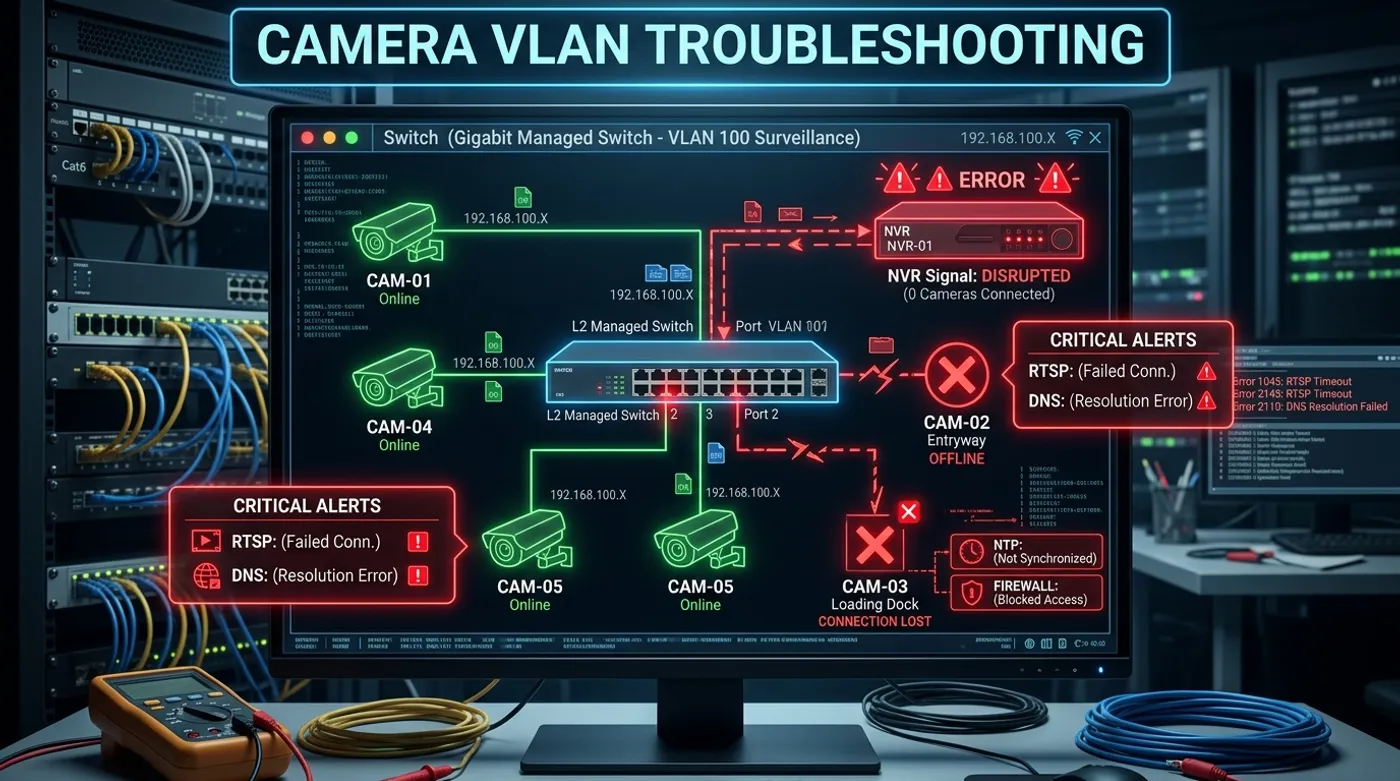
Diagnose camera VLAN failures when streams, NVR access, NTP, DNS, firewall rules, or isolated mobile viewing stop working.
A camera VLAN usually does not fail all at once. It gets an address, then the NVR cannot record. RTSP comes up, but the web UI does not. Recording works, but the timestamps are off. The vendor app only behaves when the camera can reach the internet. That pattern is annoying, but it is also useful: these problems usually come from a small set of design mistakes, not from some mysterious VLAN curse.
The useful way to troubleshoot this is to separate Layer 2, IP addressing, routing, firewall policy, and application behavior. If you change everything at once, you will not know whether you fixed the VLAN, weakened the isolation, or quietly let the cloud path back in.
Troubleshooting Map
Use this map before changing rules. The camera VLAN should have a clear expected path: camera ports enter VLAN 30, cameras receive 10.30.0.0/24 addresses, the NVR reaches cameras on the ports it actually uses, cameras use local time services, and cameras cannot initiate WAN or main LAN traffic.
Symptom: The Camera Gets No IP Address
The most likely cause is a switch port or SSID VLAN assignment problem. A wired camera normally expects an untagged access port. If the port is configured as a tagged trunk, the camera may send untagged DHCP requests into the wrong network or just never reach DHCP in the first place.
Ranked causes:
- Camera port is tagged instead of untagged/access for the camera VLAN.
- Switch uplink does not carry the camera VLAN.
- DHCP is not enabled for the camera subnet.
- Camera still has an old static IP from a previous network.
- The camera is connected through an unmanaged switch in a way that strips or mixes VLAN expectations.
Diagnostics:
- Check the switch port profile for the physical camera port.
- Check the uplink between switch and router.
- Look at the DHCP lease table for the camera MAC address.
- Temporarily connect one known-good camera directly to a known-good access port.
- If the camera had a static IP, factory reset or temporarily place a laptop in the old subnet to recover it.
Fix:
Set the camera-facing port as an access port for the camera VLAN. Make sure the switch uplink carries that VLAN back to the router. Confirm the DHCP scope exists for the camera subnet, then create a DHCP reservation once the camera appears. This is one of those cases where being precise is easier than being clever.
Symptom: The Camera Has an IP, but the NVR Cannot See It
This is the classic forum-thread failure: the VLAN exists, DHCP works, isolation was applied, and then recording dies. Usually the firewall is blocking the NVR from initiating connections into the camera VLAN.
Ranked causes:
- No allow rule from NVR IP to camera subnet.
- Rule exists but is below a broader inter-VLAN deny rule.
- NVR is using the old camera IP address.
- Camera stream port differs from the assumed RTSP port.
- Camera web UI works, but RTSP credentials or path changed.
Diagnostics:
- From the NVR host, test whether the camera IP responds.
- Test the camera web UI from the NVR network if allowed.
- Test the RTSP URL from the NVR host with the same credentials the recorder uses.
- Check firewall logs for blocks from NVR IP to camera IP.
- Confirm the camera reservation matches the NVR configuration.
Fix:
Create a narrow allow rule from the NVR IP to the camera subnet on the ports the recorder uses. Keep the rule directional. The NVR reaches cameras; cameras do not get broad permission to initiate traffic back into the NVR network.
Symptom: RTSP Works, but the Camera Web UI Does Not
This usually means your NVR exception is working for video but not for management. That may be intentional. RTSP recording does not require the camera admin page to be reachable from every laptop in the house.
Ranked causes:
- Firewall allows RTSP but blocks HTTP or HTTPS.
- The camera uses a non-standard management port.
- Admin access is attempted from a workstation that has no rule into the camera VLAN.
- Browser access depends on a plugin, redirect, or HTTPS certificate behavior.
Diagnostics:
- Test from the NVR host and from the admin workstation separately.
- Confirm the camera’s management port.
- Check whether HTTP redirects to HTTPS or another port.
- Look at firewall logs for workstation-to-camera attempts.
Fix:
If admin access is needed, create a temporary or narrow rule from a trusted admin workstation to the camera subnet on management ports. Do not use that as an excuse to open the whole main LAN into the camera VLAN permanently.
Symptom: Recording Works, but Timestamps Are Wrong
This is usually an NTP problem. Cameras can keep streaming while their internal clocks drift, reset, or sit in the wrong timezone. That makes footage much harder to correlate with door locks, motion events, alarms, and router logs.
Ranked causes:
- Camera was previously using public NTP, and WAN is now blocked.
- Camera cannot reach local NTP.
- Camera timezone is wrong even though NTP time is correct.
- Camera firmware expects DNS resolution before attempting NTP.
Diagnostics:
- Check camera time after a reboot.
- Check firewall logs for blocked UDP
123. - Point one test camera to the router or local server as NTP.
- Compare NVR event time, camera overlay time, and system log time.
Fix:
Provide local NTP and allow the camera VLAN to reach it. If cameras require a hostname instead of an IP address, resolve that hostname locally or configure a local DNS record. Reopening full WAN just to fix timestamps is the kind of shortcut that comes back later.
Symptom: The Vendor App Stopped Working
This is not always a bug. If the app depends on vendor cloud relays, push services, or outbound camera sessions, blocking WAN from the camera VLAN will break it. In a local-first setup, that is often the point of the isolation.
Ranked causes:
- Camera cannot reach vendor cloud endpoints.
- Phone app expects cloud relay instead of local NVR access.
- DNS is blocked, so the app setup flow cannot resolve vendor services.
- UPnP or automatic port mapping no longer works.
Diagnostics:
- Check whether local NVR viewing still works.
- Check DNS logs for vendor domain lookups.
- Check firewall logs for blocked camera-to-WAN traffic.
- Test from the local network versus cellular.
Fix:
Choose the architecture. The community workaround is to let the camera have internet access until the app works. The local-first fix is to stop depending on the camera vendor app for critical viewing and route remote access through a controlled VPN, NVR interface, or home automation dashboard. If you intentionally need vendor cloud features, document that exception and limit it as much as the platform allows.
Community Workaround vs Correct Fix
The common workaround is broad: allow the camera VLAN to the internet, allow the main LAN to the camera VLAN, and call the VLAN “isolated” because the cameras have a different subnet. That usually makes apps and NVRs work quickly, but it keeps the risky parts of the original flat network intact.
The correct fix is slower but cleaner: identify the path that failed, then allow only that path. If the NVR cannot record, allow NVR-to-camera RTSP. If time is wrong, allow camera-to-local-NTP. If admin access is needed, allow one workstation temporarily. If the vendor app requires cloud, decide whether that feature is worth weakening the design.
A practical example: a camera at 10.30.0.22 records fine from the NVR at 10.10.0.50, but the timestamp resets after every power outage. Opening internet access would probably hide the issue. The better fix is local NTP: allow 10.30.0.0/24 to reach 10.30.0.1 on UDP 123, then point cameras at the router or local time server.
Symptom: Home Assistant Events Stopped Working
Home Assistant integrations often break when the VLAN changes because they were previously talking directly to cameras on the flat LAN. After isolation, discovery, event callbacks, or snapshot URLs may stop crossing the firewall.
Ranked causes:
- Home Assistant has no rule to reach the camera VLAN.
- The integration was using old camera IPs.
- Discovery does not cross VLANs.
- Events should be coming from the NVR, not directly from cameras.
Diagnostics:
- Check whether Home Assistant talks to cameras directly or through the NVR.
- Replace hostnames with reserved IPs during testing.
- Check firewall logs from the Home Assistant IP to camera IPs.
- Confirm the NVR integration still receives events.
Fix:
Prefer integrating Home Assistant with the NVR when possible. That keeps cameras contained and makes the recorder the trusted event source. If direct camera access is required, allow Home Assistant’s IP to reach only the camera ports that integration actually needs.
Verification Checklist
After fixing one issue, confirm you did not undo the isolation.
- Cameras receive addresses in the camera subnet.
- Camera switch ports are access ports for the camera VLAN.
- The switch uplink carries the camera VLAN.
- The NVR can record every camera stream.
- Cameras cannot initiate WAN traffic.
- Cameras cannot initiate traffic to the main LAN.
- Local NTP keeps timestamps correct after reboot.
- DNS behavior is understood and not accidentally broad.
- Admin access exists only from approved devices or temporary rules.
- Home Assistant works through the NVR or a narrow direct exception.
If the fix required a broad allow rule, treat that as a temporary diagnostic step, not the end state. The final state should be narrower than the troubleshooting state.
Keep reading
Related guides
Do Not Buy a Wi-Fi Camera Before Understanding NVR Recording
A Wi-Fi camera with only an internal SD card can lose the evidence with the camera. Use a local NVR and small UPS plan instead.
Build an Offline Multimodal Voice Assistant for Home Assistant
Build a local Home Assistant voice pipeline with wake word, speech, Gemma 4 context, allowlisted actions and spoken responses.
How Much Hardware Does a Private ChatGPT Actually Need?
Size CPU, RAM, VRAM and storage for Open WebUI, Ollama, local RAG and multiple users without buying an oversized AI server.