Turn an Old Android Phone Into a Home Server Without Ignoring the Battery
Reuse an old Android phone as a zero-cost local server with Termux, SSH, file access, safe charging, and realistic limits.
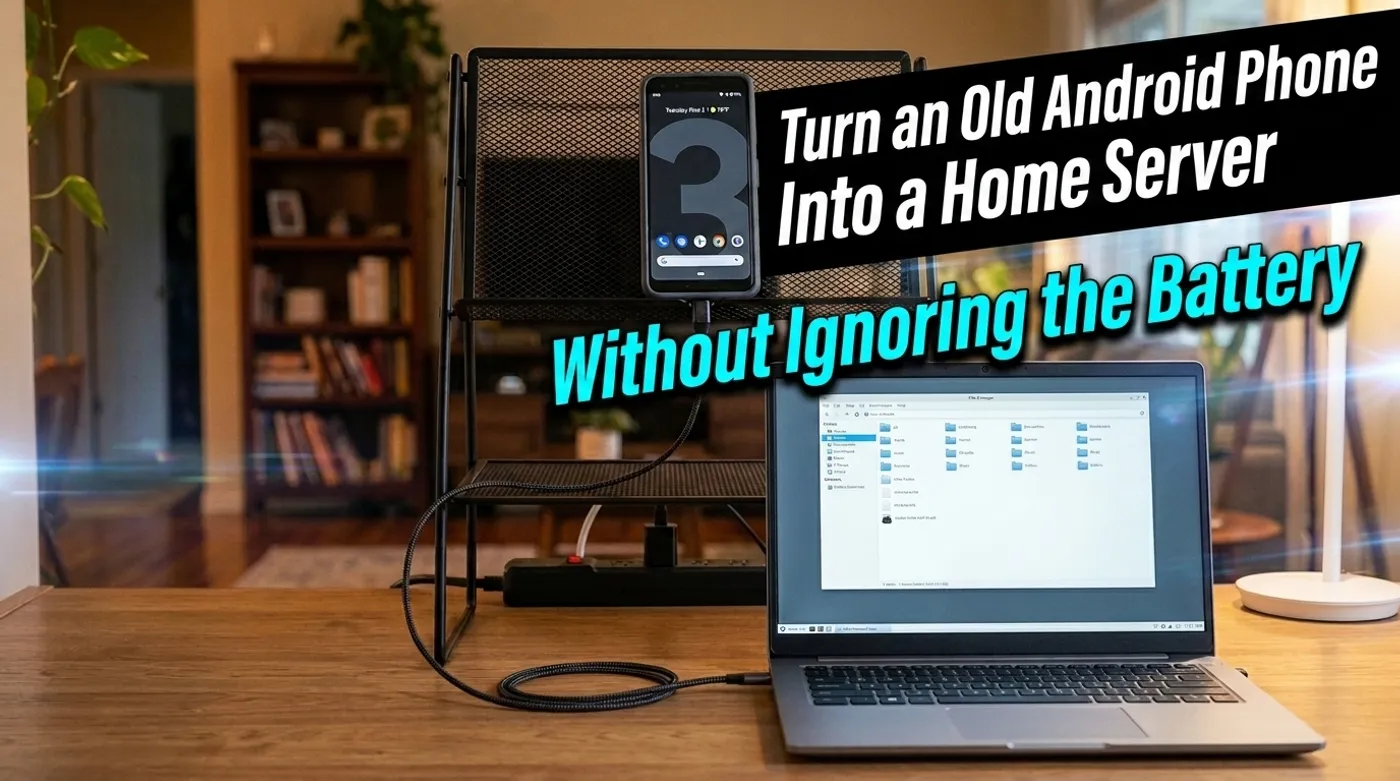
Reuse an old Android phone as a zero-cost local server with Termux, SSH, file access, safe charging, and realistic limits.
The real setup behind this guide did not begin with a rack, a NAS, or a carefully researched shopping list. It began with an Android handset in a drawer and the reasonable question: can this thing still do useful work?
Yes, it can. An old phone already has a low-power ARM processor, flash storage, Wi-Fi, a screen for emergency access, and a battery that behaves like a tiny UPS. For zero dollars, it can become an SSH box, an SFTP drop point, a private static website, a small monitoring endpoint, or a place to run lightweight scripts.
The catch is that the same battery is also the part most likely to turn a fun reuse project into a bad story. So this guide starts with the battery, not with a heroic list of services the phone can technically run if you stop caring about reliability.
First: Decide Whether the Phone Is Safe to Reuse
Do not use the phone as an always-on server if the battery is swollen, the back cover is lifting, the screen is separating from the frame, the device becomes unusually hot while idle, or the battery has been punctured or crushed.
Power it down, unplug it, and take it to an appropriate battery or electronics recycling point. Do not press the case closed and congratulate yourself on the repair. A swollen lithium-ion pouch is not a cable-management problem.
For a phone that appears healthy:
- use the original charger or a reputable replacement with the correct voltage;
- place the phone on a hard, ventilated, nonflammable surface;
- remove a thick case if it traps heat;
- keep it away from direct sunlight, bedding, paper piles, and closed drawers;
- enable the manufacturer’s battery-protection or charge-limit feature if the phone provides one;
- check it physically during the first week instead of declaring it headless and forgetting where you put it.
The US EPA’s current lithium-ion battery guidance treats swelling as battery damage and a potential fire hazard, and directs consumers toward proper recycling or hazardous-waste programs. That does not mean every old phone is waiting to ignite. It means heat, swelling, physical damage, and questionable charging hardware deserve more respect than a server tutorial usually gives them.
What the Phone Can Realistically Serve
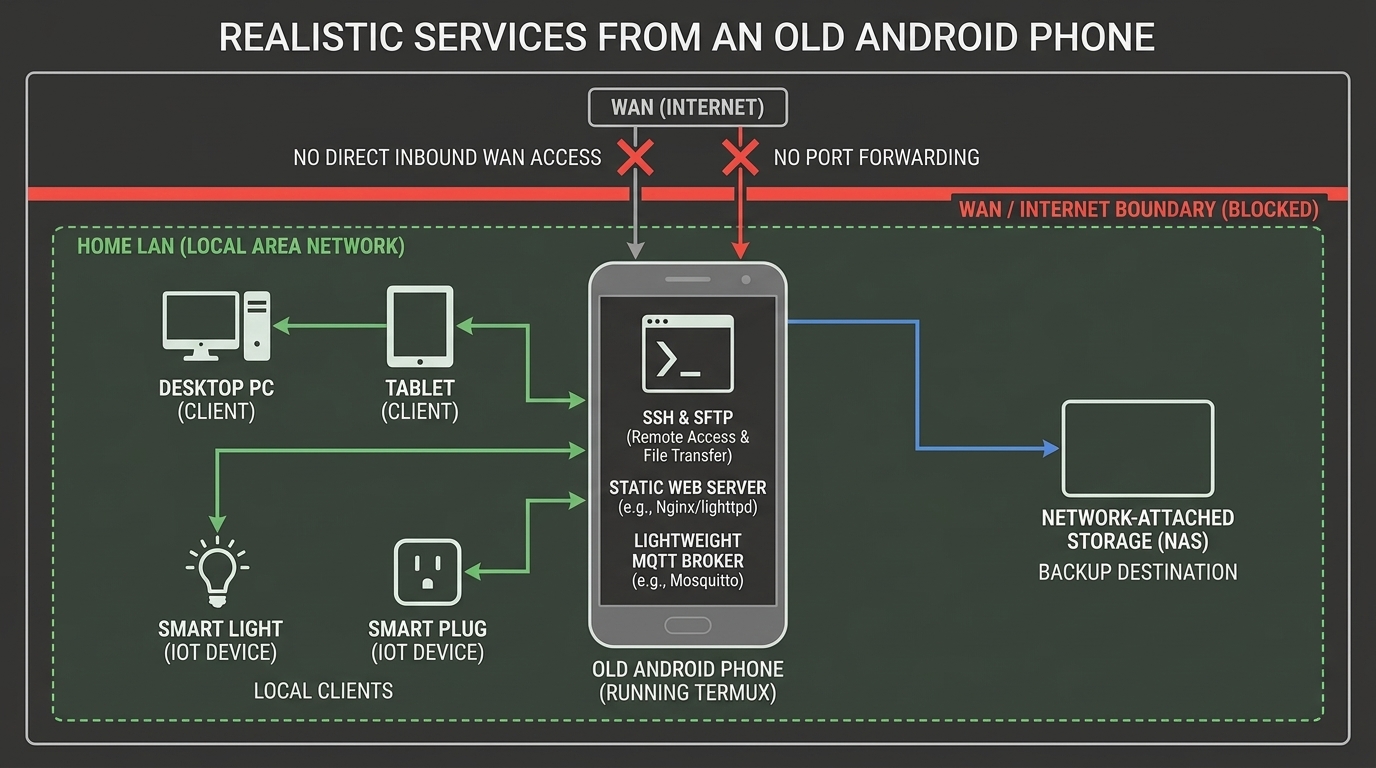
A phone server is best at jobs that tolerate modest storage, Wi-Fi, Android background restrictions, and an occasional reboot.
Good first jobs:
| Service | Why it fits | Main limitation |
|---|---|---|
| SSH access | Remote shell for scripts and maintenance | Android may stop background work unless configured |
| SFTP file drop | Simple local transfer between computers and phone | Phone storage is not a backup |
| Static web page | Local notes, documentation, or a tiny dashboard | No authentication in the simple example below |
| Lightweight scripts | Scheduled checks, parsers, or small utilities | Vendor battery management can kill processes |
| Small MQTT test broker | Useful for learning and noncritical sensors | Needs authentication and careful configuration |
Bad jobs:
- the only copy of family photos;
- a multi-camera NVR;
- a serious media transcoding server;
- the only DNS resolver in the house;
- direct control of locks, alarms, smoke alerts, or leak shutoff;
- anything exposed directly to the public internet.
The phone is free because you already own it. That does not grant it enterprise storage, wired networking, thermal management, or a maintenance contract, no matter how convincing the terminal prompt looks.
Install Termux From a Current Source
Termux provides a Linux-like userspace and package manager without requiring root. The official Termux project currently recommends the stable F-Droid or official GitHub builds for most users and warns against mixing the main app and plugins from different sources because their signatures differ. Its Google Play build is a separate experimental branch with missing functionality compared with the stable build.
Use one source consistently. Do not download a random APK from a tutorial mirror.
After installing Termux, update its packages:
pkg update
pkg upgrade
If the phone runs an Android version too old for supported packages, stop there. A device that cannot receive a usable Termux environment or security updates can still be a local display or remote control, but it is a poor choice for a network service.
Give the Phone a Stable Address
Do not hardcode a random IP inside Android. Create a DHCP reservation in the router for the phone’s Wi-Fi MAC address.
Example:
Phone hostname: oldphone-server
Reserved IP:   10.10.0.25
Network:       trusted LAN or a restricted utility VLAN
Internet:      allowed initially for updates, not required for local access
Some Android versions use a randomized MAC address per Wi-Fi network. In the Wi-Fi network settings, use the device MAC for your home network if the reservation keeps changing. Leave MAC randomization enabled on public networks.
Wi-Fi is acceptable for this project because the workload is light. If the phone supports a USB Ethernet adapter while charging, wired networking can be more stable, but USB-C power and data roles vary by phone and hub. Do not buy three adapters to preserve the project’s proud zero-dollar budget.
Turn On SSH and SFTP
Install OpenSSH:
pkg install openssh
passwd
whoami
sshd
Termux normally runs SSH on port 8022, not port 22. Use the username printed by whoami and the reserved IP from your router:
ssh -p 8022 u0_a123@10.10.0.25For SFTP:
sftp -P 8022 u0_a123@10.10.0.25Replace u0_a123 with the actual Termux username. Do not forward port 8022 on the router. This service is for the local network. If you later need remote access, use a VPN into the home network and keep SSH private.
Password login is acceptable for the first test. For continued use, add an SSH key from your main computer and then disable password authentication after confirming the key works. Losing access because you disabled passwords before testing the key is a very authentic sysadmin experience, but we can skip it.
Share a Folder From Android Storage
Ask Android for shared-storage permission:
termux-setup-storageAfter approving the prompt, Termux creates paths such as:
~/storage/shared
~/storage/downloads
~/storage/pictures
You can reach these folders through SFTP. Keep service configuration and SSH keys inside the private Termux home directory, not in shared storage where other Android apps may have broader access.
Treat SFTP as transport, not backup. If the phone dies, is reset, or silently corrupts its flash storage, important files must still exist somewhere else.
Run a Small Local Web Server
For a first test, Python is enough:
pkg install python tmux
mkdir -p ~/www
cd ~/www
python -m http.server 8080 --bind 0.0.0.0
From another device on the same LAN, open:
http://10.10.0.25:8080This server has no login and should contain only non-sensitive local files. It is useful for a household start page, emergency instructions, device documentation, or a small exported dashboard. It is not where you should store tax records because the word “private” appeared earlier in the article.
Run it inside tmux if you want to detach from the session:
tmux new -s local-web
cd ~/www
python -m http.server 8080 --bind 0.0.0.0
Press Ctrl+B, then D, to detach. Reconnect later with:
tmux attach -t local-webPrevent Android From Quietly Killing the Server
Android is designed to protect phone battery life, not to honor your new career for the device. Android’s Doze and App Standby documentation explains that idle apps can have CPU and network activity deferred.
For Termux:
- disable battery optimization for Termux in Android settings;
- allow background activity if the vendor provides that option;
- keep a persistent Termux notification visible if the build uses one;
- run
termux-wake-lockwhile testing a service that must stay awake; - reboot the phone and verify every required service before trusting it.
Manufacturer firmware varies. Some phones are aggressive about killing apps even after exemptions. Test with the screen off for several hours, then overnight, then after a reboot. The phrase “it worked while I was looking at it” is not an uptime result.
Startup After a Reboot Is a Separate Problem
A tmux session does not survive a phone reboot. You can use the Termux:Boot plugin from the same source as Termux and place reviewed startup scripts in ~/.termux/boot/, but automatic startup deserves caution.
Start with one service. Log its output. Confirm it does not create duplicate processes on repeated boots. Keep SSH available as the recovery path.
Do not automate a stack of five services on day one. Android updates, permission changes, Wi-Fi startup timing, and storage unlock timing can all affect boot behavior. A phone with a PIN may also require the first manual unlock before app storage and background services behave normally.
Monitor Heat, Storage, and Process Health
At minimum, check:
pkg install procps
df -h
free -h
ps -ef
Also check the physical device:
- Is the back cover still flat?
- Is the phone warm while idle?
- Is the charger or cable discolored or unusually hot?
- Is free storage dropping every day?
- Does the service return after Wi-Fi or router restarts?
Avoid high-write workloads. Phone flash is not designed to absorb endless logs, database writes, camera recordings, or swap abuse. Rotate logs and move durable data to another system.
The Battery Is a Tiny UPS, Not a Lifetime Warranty
The internal battery gives the phone one useful server feature: brief power outages do not immediately stop it. The router and access point still need power, of course. A server that stays awake while the Wi-Fi dies is just a warm rectangle with confidence.
Continuous charging also keeps the battery at a high state of charge and can add heat. If the phone offers an 80 percent charge cap or battery-protection mode, use it. If it does not, prioritize low temperature, a good charger, ventilation, regular inspection, and a workload light enough that the phone stays cool.
Do not root the phone solely to force a charge limit unless you already understand the device, bootloader, recovery path, and security trade-offs. The safer upgrade from an aging phone server is often a used thin client or mini PC, not a more creative charging script.
Test the Failure Cases Before Calling It a Server
Run these tests deliberately:
- Turn off the screen for four hours and reconnect over SSH.
- Restart the router and confirm the phone returns at the reserved IP.
- Reboot the phone and document which services require manual startup.
- Disconnect WAN while leaving Wi-Fi running and confirm local access still works.
- Unplug power briefly and confirm the phone stays online without overheating when charging resumes.
- Copy a test file to the phone, delete the local copy, and restore it from your real backup destination.
- Check the phone and charger physically after a full week.
If one of those tests fails, fix that layer before adding another service.
When to Retire the Phone Server
Retire it when the battery swells, heat rises without a workload change, Android can no longer run supported software, Wi-Fi becomes unreliable, storage errors appear, or the services become important enough that their loss would disrupt the household.
That last point is not failure. It means the experiment proved useful.
An old phone is a good zero-cost introduction to local hosting because it makes SSH, addresses, ports, permissions, backups, and process supervision tangible. Use it for small, replaceable services. Keep the data elsewhere. Inspect the battery. And resist the classic home-lab urge to put the entire house on the first device that successfully answered a ping.
Keep reading
Related guides
How Much Hardware Does a Private ChatGPT Actually Need?
Size CPU, RAM, VRAM and storage for Open WebUI, Ollama, local RAG and multiple users without buying an oversized AI server.
Local RAG With Open WebUI: Chat With Documents Without the Cloud
Build an offline Open WebUI RAG workflow for PDFs with local embeddings, practical chunking, evidence checks and private storage.
Open WebUI on Windows: Build a Private ChatGPT With Ollama
Run Open WebUI and Ollama on Windows with persistent storage, LAN access controls, backups and no accidental internet exposure.