Open WebUI on Windows: Build a Private ChatGPT With Ollama
Run Open WebUI and Ollama on Windows with persistent storage, LAN access controls, backups and no accidental internet exposure.
Run Open WebUI and Ollama on Windows with persistent storage, LAN access controls, backups and no accidental internet exposure.
A private ChatGPT clone stops being private the moment you publish its port to every interface, forward it through the router, and hope the login screen will carry the entire security model. At that point, “local” only describes where the computer sits.
For a Windows machine, the cleanest first setup is Ollama running natively on Windows and Open WebUI running in Docker Desktop. Ollama owns model execution and GPU access. Open WebUI provides chat history, user management, model selection, and document features. Keeping those roles separate makes updates and troubleshooting much less theatrical.
This guide starts with local-only access. LAN access comes later, after persistence and recovery are working.
What You Are Actually Installing
The request path is simple:
Browser -> Open WebUI container -> Ollama on Windows -> local modelOpen WebUI does not make a weak computer magically fast. It is the interface and application layer. Ollama loads the model and consumes most of the CPU, RAM, or VRAM. If you are still choosing a machine, How Much Hardware Does a Private ChatGPT Actually Need? separates interface overhead from model memory.
Before starting, confirm:
- Windows 10 22H2 or newer;
- Docker Desktop is installed and running;
- Ollama is installed from the official Windows package;
- the model drive has enough free space;
- virtualization is enabled for Docker Desktop.
The Ollama Windows documentation says the native service exposes its API on http://localhost:11434 and stores models under %HOMEPATH%\.ollama by default. Model libraries grow quickly, so set OLLAMA_MODELS to another SSD before downloading large models if the system drive is tight.
Install and Test Ollama First
Open PowerShell and pull one model that fits your hardware:
ollama pull gemma3:4b
ollama run gemma3:4b
Use the model you have actually selected; gemma3:4b is only a modest test target. Ask one question, exit the session, and verify Ollama still responds:
Invoke-RestMethod http://localhost:11434/api/tagsDo this before adding Docker. When a three-layer setup fails, knowing that the bottom layer already works saves an hour of changing random settings until the error message gets bored.
Run Open WebUI With Persistent Storage
Create a directory for the deployment and add this compose.yaml:
services:
  open-webui:
    image: ghcr.io/open-webui/open-webui:${OPEN_WEBUI_VERSION}
    container_name: open-webui
    restart: unless-stopped
    ports:
      - "127.0.0.1:3000:8080"
    environment:
      OLLAMA_BASE_URL: http://host.docker.internal:11434
    volumes:
      - open-webui-data:/app/backend/data

volumes:
  open-webui-data:
Add a .env file beside it:
OPEN_WEBUI_VERSION=v0.x.yReplace v0.x.y with a current release tag from the Open WebUI releases before running the stack. The official Open WebUI quick start uses a named volume at /app/backend/data for persistence and explicitly recommends pinning a version for production instead of following the floating main image.
Start it:
docker compose pull
docker compose up -d
docker compose ps
Open http://localhost:3000. The first account becomes the administrator. Use a unique password even though the service is currently bound to loopback. Local-only is a network boundary, not an excuse to use password123.
Docker Desktop provides the special hostname host.docker.internal so a container can address a service running on Windows. Both the Docker networking guide and Open WebUI’s Ollama connection guide document this path. Addressing the host and accepting the connection are separate issues, however: Ollama’s bind setting still controls whether the request is accepted.
Keep the Private Chat Private
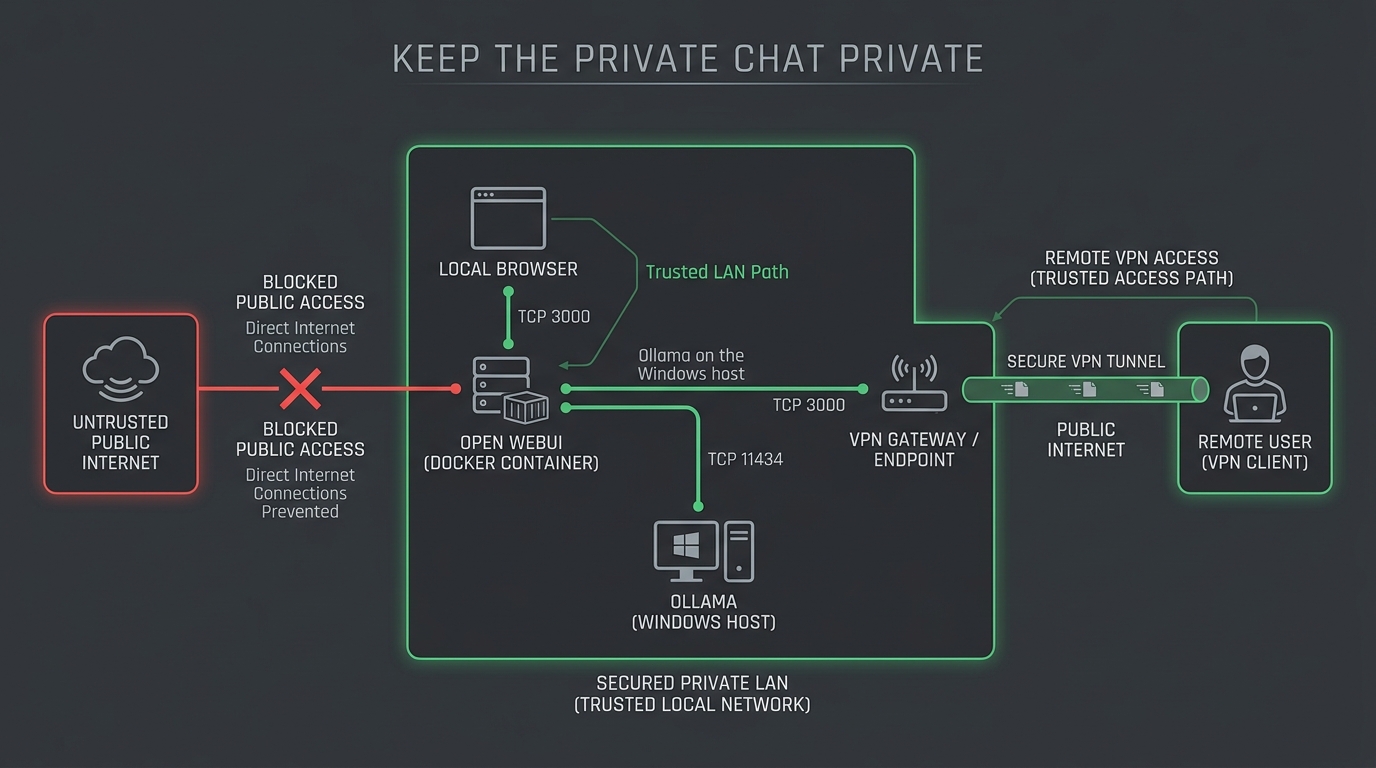
The important line in the Compose file is:
ports:
  - "127.0.0.1:3000:8080"
It publishes Open WebUI only on the Windows loopback interface. Another device on the LAN cannot reach it, and neither can the internet.
Do not change that to 3000:8080 casually. Omitting the host IP usually publishes the port on all host interfaces. Docker makes that convenient because apparently every security decision deserves a shorthand.
Try Ollama’s default loopback bind first. If Open WebUI cannot connect from Docker, the official troubleshooting path is to change Ollama’s bind with OLLAMA_HOST. On Windows, set the user environment variable, quit Ollama from the tray, and start it again:
[Environment]::SetEnvironmentVariable(
  "OLLAMA_HOST",
  "0.0.0.0:11434",
  "User"
)
This is not a harmless compatibility toggle. 0.0.0.0 makes the API listen on every host interface. Add a Windows Defender Firewall policy that denies inbound TCP 11434 from the Private and Public networks while still allowing the local Docker Desktop backend to reach it. Docker Desktop networking can vary by version, so test both sides: the container must reach /api/tags, and a second LAN device must not.
If you cannot express that firewall policy confidently, use Open WebUI’s bundled Ollama container image or run both services inside one private Docker network instead. Keeping the model API unpublished is safer than exposing it because a connection dialog was annoying.
Add LAN Access Without Opening the Internet
If phones and laptops inside the house need access, bind Open WebUI to the Windows machine’s fixed LAN address:
ports:
  - "192.168.10.20:3000:8080"
Replace the example address with a DHCP reservation or static address assigned to that host. Then create a Windows Defender Firewall inbound rule that:
- allows TCP 3000;
- applies only to the Private profile;
- permits only your trusted LAN subnet;
- blocks Public profile access.
Test from a second device on the same LAN. Then test from a phone using cellular data. The cellular test should fail.
Do not create a router port forward for TCP 3000. For access away from home, use WireGuard, Tailscale, or another authenticated VPN and connect as though the device were on the trusted network. A reverse proxy with TLS and identity controls can be valid, but it is a separate internet-facing service with patching, logs, certificates, and abuse controls. It is not the easy button.
If your network already separates trusted clients from IoT devices, keep the AI host on the server or trusted VLAN. Permit client-to-server TCP 3000 and deny IoT-to-server access. The principles in How to Isolate IP Cameras on a VLAN apply here too: narrow rules are easier to reason about than broad inter-VLAN access.
Persistence Is Not a Backup
The named volume keeps data when the container is replaced. It does not protect against disk failure, accidental deletion, filesystem corruption, or an update that changes stored data.
Your recovery set should include:
- the Compose file and
.env; - the
open-webui-datavolume; - Ollama model manifests or a list of models to pull again;
- any local documents used by Knowledge or RAG;
- the Open WebUI release tag that produced the backup.
Stop Open WebUI or otherwise obtain an application-consistent copy before backing up the volume. Store at least one copy outside the Windows machine. Models can usually be downloaded again; chat history, user data, and private documents cannot.
An SSD improves model loading and database behavior. A UPS gives the host time to shut down instead of testing SQLite recovery during every power flicker. Neither purchase is mandatory for a trial, but both matter once the service becomes part of daily work.
Update Without Losing the Working Version
An update should not begin by replacing the pinned tag and deleting the old image and backup. Use a deliberately boring sequence:
- back up the application data;
- record the current image tag;
- read release notes for breaking changes;
- change
OPEN_WEBUI_VERSION; - run
docker compose pull; - run
docker compose up -d; - test login, models, chat history, and document retrieval.
If the new release fails, restore the previous image tag and application-consistent backup. Rolling back only the container while leaving a migrated database in place may not restore the old application.
Troubleshooting the Common Failure
If Open WebUI loads but shows no Ollama models, check each boundary:
Invoke-RestMethod http://localhost:11434/api/tags
docker logs --tail 100 open-webui
docker exec open-webui sh -c "wget -qO- http://host.docker.internal:11434/api/tags"
The last command depends on wget being present in the selected image. If it is unavailable, use Open WebUI’s connection settings and container logs rather than installing tools into a running container.
The usual mistakes are configuring localhost:11434 inside Open WebUI or leaving Ollama bound to loopback when Docker Desktop cannot bridge that listener. Inside a container, localhost means that container, not the Windows host. Open WebUI’s connection troubleshooting page explains both the address boundary and the OLLAMA_HOST fallback.
Once the local path works, reboot Windows and confirm Docker, Ollama, Open WebUI, and the selected model all return without manual repair. The first response makes a good screenshot; surviving the reboot is what makes the setup useful next week.
Keep reading
Related guides
How Much Hardware Does a Private ChatGPT Actually Need?
Size CPU, RAM, VRAM and storage for Open WebUI, Ollama, local RAG and multiple users without buying an oversized AI server.
Local RAG With Open WebUI: Chat With Documents Without the Cloud
Build an offline Open WebUI RAG workflow for PDFs with local embeddings, practical chunking, evidence checks and private storage.
Gemma 4 Audio Local Inference: What Works Offline and What Does Not
Test Gemma 4 audio locally for transcription and translation, with realistic runtime, format, memory and latency limits.