Build a Small Home Server Rack Without Overbuilding It
Plan a compact home server rack with power, cooling, cabling, switching, storage, and room to grow without wasting money.
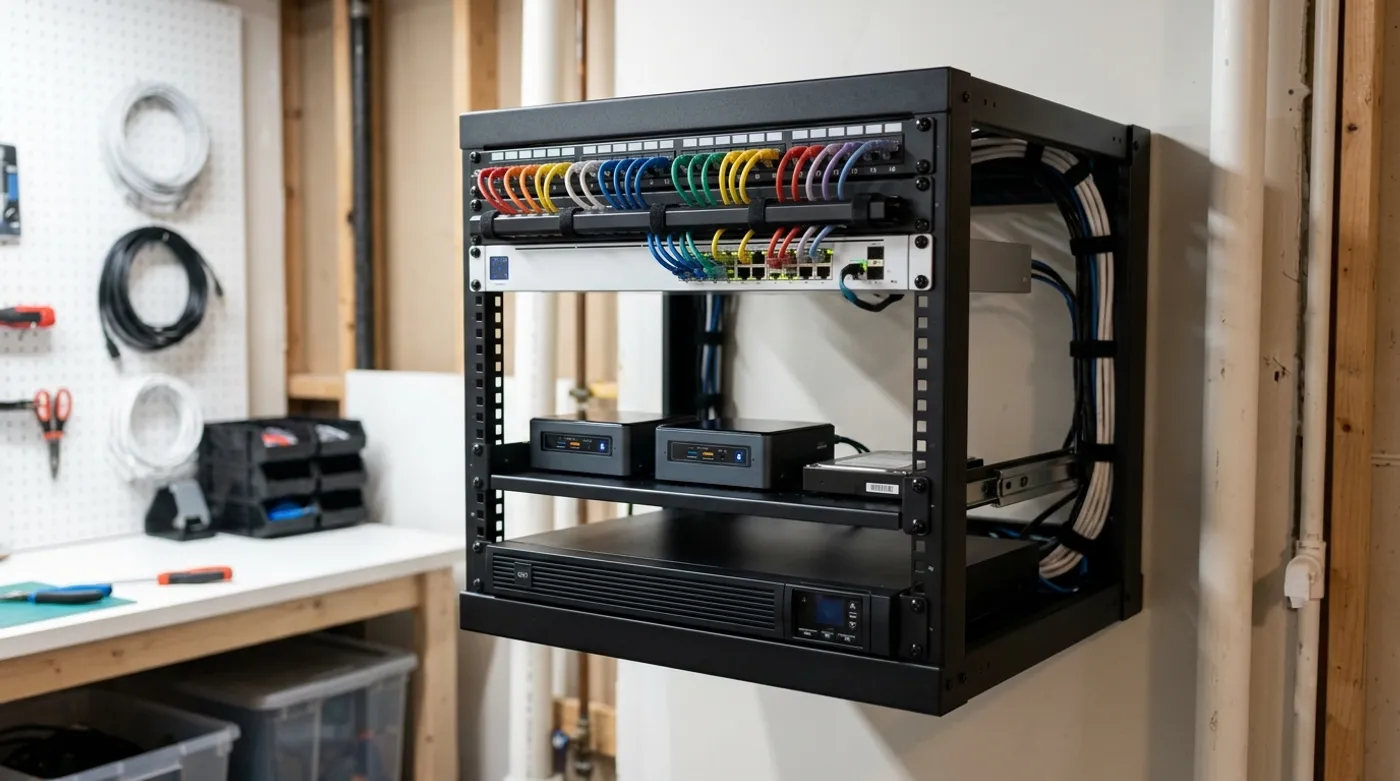
Plan a compact home server rack with power, cooling, cabling, switching, storage, and room to grow without wasting money.
A home server rack should make maintenance easier. That is the whole point. If the rack mostly exists to make a closet look like a tiny data center, it is probably money that should have gone into a UPS, better drives, or cleaner cabling.
People jump from “I need a home server” to “I need a rack” too quickly. Sometimes they do need one. A lot of the time they need a shelf, labels, airflow, and fewer power bricks dangling behind the router.
When a Rack Actually Makes Sense
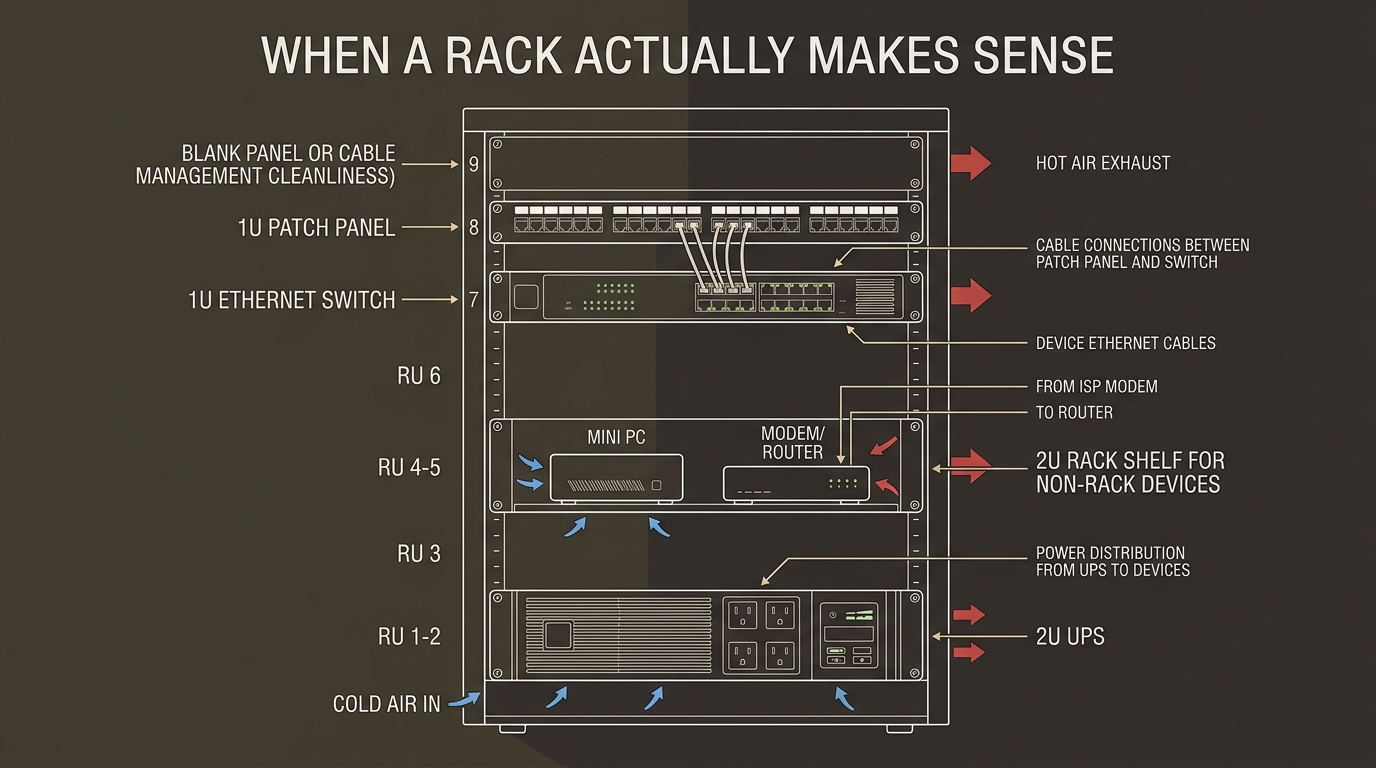
A rack starts making sense when you have several pieces of always-on infrastructure:
- router or firewall
- modem or ONT
- switch
- PoE switch
- home server
- NAS
- UPS
- patch panel
- NVR or camera recorder
If you only have one mini PC and a router, a rack may be premature. Start with a ventilated shelf. Add structure when the number of cables and devices makes troubleshooting annoying.
Start With Power and Heat
The rack plan begins with watts, not U sizes. Add up the expected load before buying metal:
- router or firewall: 5 to 25 watts
- switch: 5 to 30 watts
- PoE switch: depends on camera and access point load
- mini PC server: 8 to 35 watts at idle
- NAS: often 20 to 60 watts depending on drives
Then size the UPS for the devices that must stay alive together. In a local-first home, that usually means router, switch, server, and storage. Keeping Wi-Fi alive during a short outage is useful. Keeping a monitor or decorative lighting on the UPS is not.
Cooling should be boring. Leave front-to-back or bottom-to-top airflow. Do not trap a NAS in a closed cabinet with no exhaust path. Drives hate heat more than they hate ugly shelves.
Network Layout
A compact rack network can be simple:
- WAN device into router or firewall
- router uplink to managed switch
- switch access ports to server, NAS, access points, and cameras
- PoE ports for access points and IP cameras
- optional patch panel for permanent wall runs
If you use VLANs, document them at the rack:
VLAN 10 - Main LAN      10.10.0.0/24
VLAN 20 - Servers       10.20.0.0/24
VLAN 30 - Cameras       10.30.0.0/24
VLAN 40 - IoT           10.40.0.0/24
Labels matter more than advanced gear. A labeled cable saves more time than a prettier switch, especially when the network is down and you are crouched in a closet with a flashlight.
Rack Size
For many homes, 6U to 12U is enough. Wall-mount racks work well for network gear, but they may not be ideal for heavy UPS units or deep servers. A small open-frame rack can be easier if you have floor space.
Do not buy deep enterprise rack servers just because they are cheap used. They can be loud, power-hungry, and awkward in a house. A quiet mini PC plus a NAS often beats a bargain 2U server for domestic use.
Product Categories to Research
This article naturally needs hardware research before affiliate links:
- 6U to 12U wall-mount or open-frame rack
- Rack shelf for mini PCs and modems
- Small UPS with USB shutdown support
- Managed gigabit switch
- PoE switch if using cameras or access points
- Patch panel and keystone jacks
- Short Cat6 patch cables
- Velcro cable ties
- Rack blank panels or vent panels
- Temperature sensor for the rack area
Avoid buying every accessory upfront. Build the rack around the devices you actually own, then add cable management once the layout is stable.
The Rack Is Done When It Is Understandable
Every device should have a label. Important cables should have labels too. Router, switch, server, and NAS should be on the UPS, and the UPS shutdown behavior should be configured before the first real outage.
That is the standard I would use: can a tired person understand the rack during a failure? If yes, it is a good rack. If no, adding another shelf of hardware will not fix it.
Keep reading
Related guides
How Much Hardware Does a Private ChatGPT Actually Need?
Size CPU, RAM, VRAM and storage for Open WebUI, Ollama, local RAG and multiple users without buying an oversized AI server.
Local RAG With Open WebUI: Chat With Documents Without the Cloud
Build an offline Open WebUI RAG workflow for PDFs with local embeddings, practical chunking, evidence checks and private storage.

Open WebUI on Windows: Build a Private ChatGPT With Ollama
Run Open WebUI and Ollama on Windows with persistent storage, LAN access controls, backups and no accidental internet exposure.